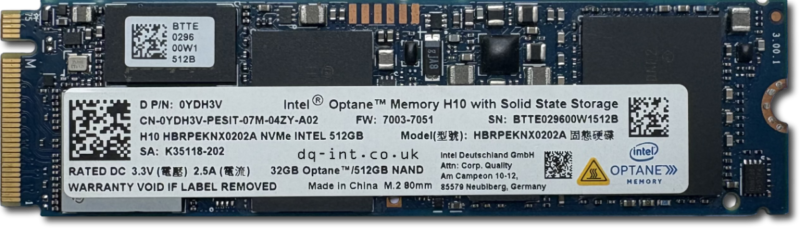
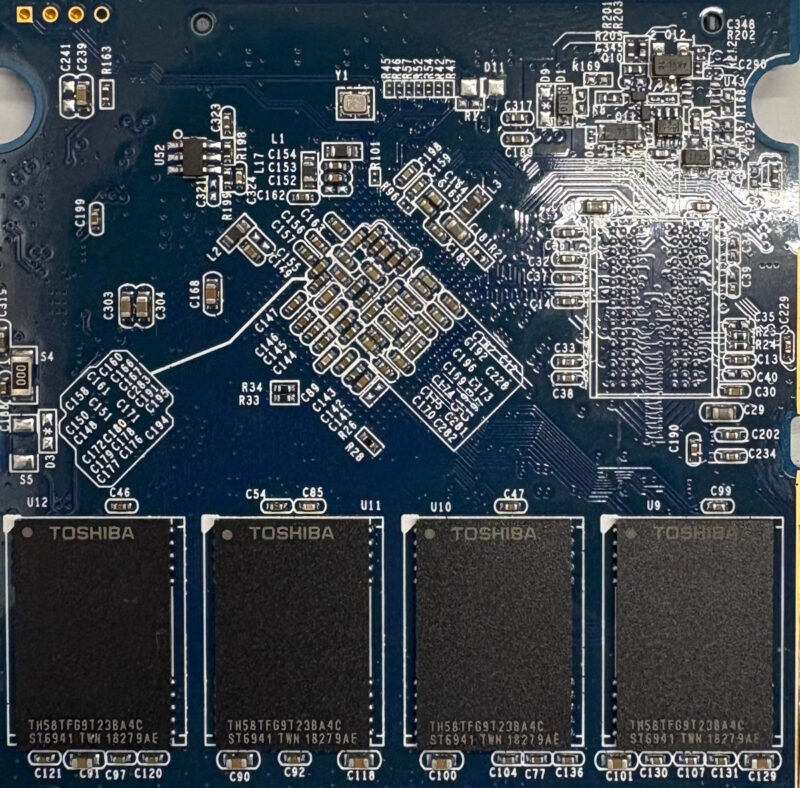
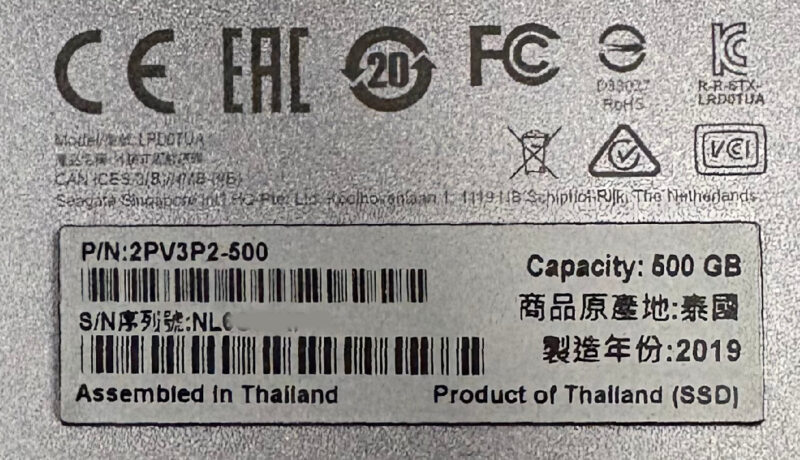
Intel Optane has been around for a while, and can improve SSD performance by combining “Optane Memory” (fast storage) and a standard SSD. For servers this requires plugging in independent Optane devices. The H10 SSD however comes as a single standard form factor m.2 SSD. The two devices are created by internally splitting the PCIe lanes and providing two separate SSDs over the same connector: one small and fast, the other larger and relatively slower. This allows the host computer to create a lop-sided RAID or cache, where the benefits of both devices are seamlessly blended together to create a large capacity and faster SSD. That is, until something goes wrong. If either half has a problem, the whole thing stops working.
Note: This is similar to Apple’s Fusion Drive system which uses a separate hard drive and SSD to achieve even larger combined drives, but at the expense of speed.
Symptoms of a Failed Optane SSD
After failing to boot, a common symptom of a failed Optane H10 SSD is that any attempts to recover the data will yield an almost empty Windows volume, with little or no user data. They almost appear as a fresh install. If you fail to correctly combine the two devices, you’ll get a very poor recovery result.
Using professional data recovery hardware, we can address the two devices independently, and read and repair them. We can then take a copy of each device, and recombine them in software to gain access to the data.
If you need Optane recovery, let us know.
Contact Us Now…
For a fast reply from a real person.
Issues
Another potential roadblock here is Bitlocker encryption. It is supposed to be impossible to enable bitlocker without making a key backup to a Microsoft account, but we’ve seen countless cases where this went wrong. Effectively locking the disk and throwing away the key.
One of the worst hard drives we’ve ever seen for data recovery
We recently heard from a local fisherman that had been unfortunate to have his boat take on water whilst moored during a storm. Due to a series of unfortunate events, the only record of his fishing pots out at sea were stored on the ship computers. These computers were not only submerged in seawater, but also diesel from the engines.
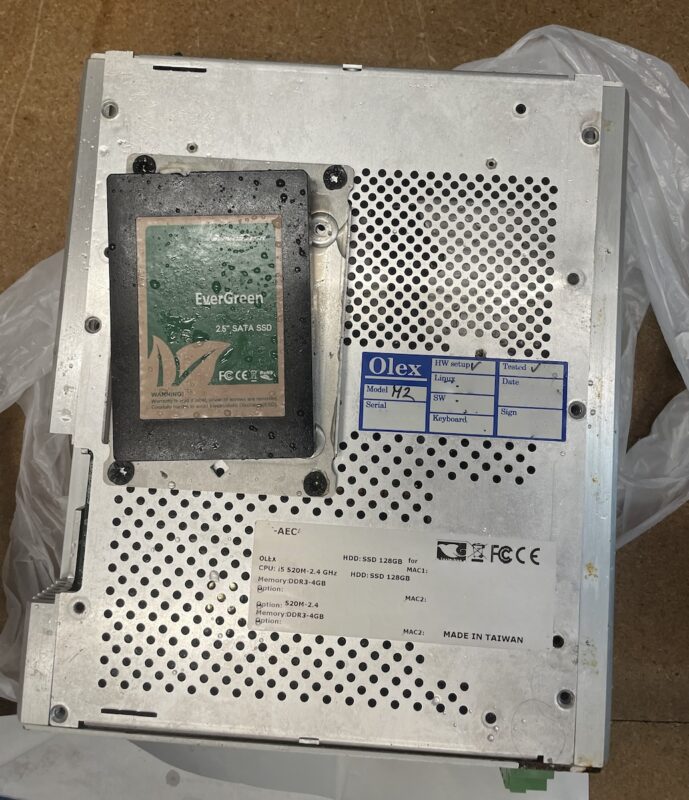
Our first step was to carefully extract the storage drives from the computers. One contained a 128GB InnoDisk EverGreen SSD, and the other a Toshiba Hard Drive.
We decontaminated the surfaces of the drives, to make them easier to deal with. We don’t often have diesel soaked disks in our workshop.
A Warning ⚠️
It is important with any liquid damage to make sure there is nothing still wet before you apply power.
The SSD
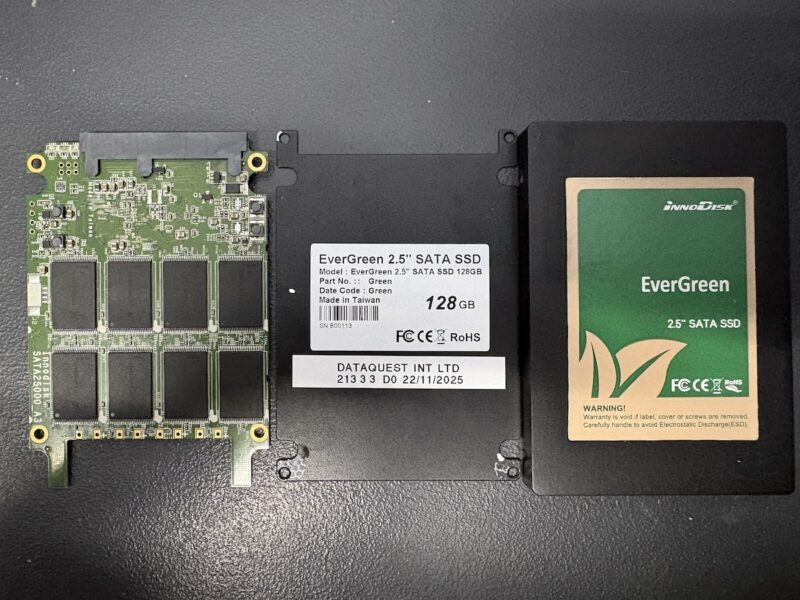
We removed the SSD circuit board from its shell, and found that water and diesel were present inside. Using a combination of chemical cleaners and delicate pads and brushes, we cleaned the board, and then let it dry thoroughly.
Water and diesel damaged InnoDisk EverGreen SSD
Once dry, we checked for short circuits, and found that the device wasn’t shorted. We applied power, but the SSD failed to reach a ready state. Although the main power rail wasn’t shorted, there must have been a problem further downstream. We found an area of the board that was getting no power, and found a damaged SMD resistor nearby. Replacing that got the drive correctly identified, and we were able to make a full clone copy of the disk.
Once the clone was complete, we were able to recover the files containing the fishing data, and send to the customer to have reloaded onto a replacement unit.
So far, so good.
The HDD
Some of the screws on the circuit board were a bit corroded, but the board itself looked in a reasonable state. Most boards can be adapted using the ROM chip, so rather than attempt to repair the board, we saved the ROM chip contents, and wrote it to a matched board.
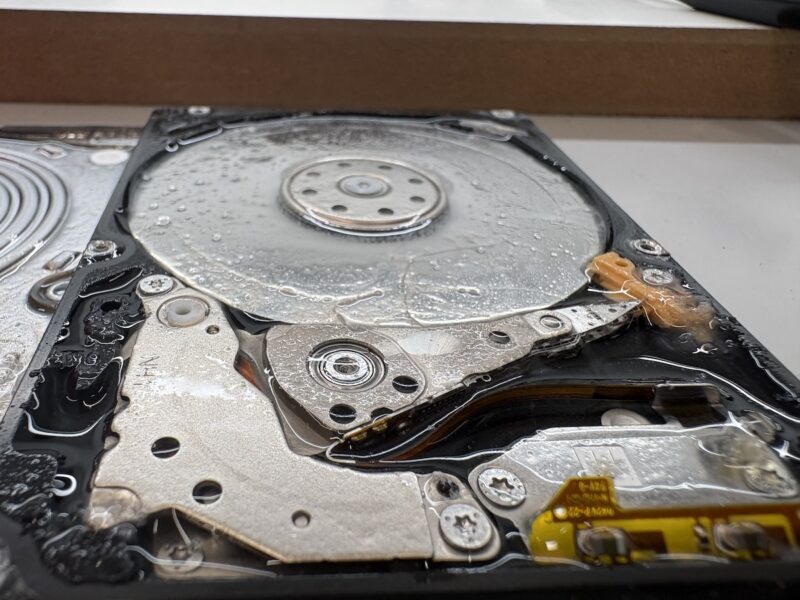
As with the SSD, it was important to make sure no water had got into the delicate parts of the drive. People assume that hard drives are sealed, but almost1 all disks have a small breather hole, to allow for the pressure inside to equalise during normal use. We’ve seen many water damaged disks where no water managed to get through the hole, but this was not one of them. Inside this drive was full of thick, almost jelly like liquid.
Water and diesel damaged Toshiba hard drive
We didn’t hold out much hope, especially as there seemed to be concentric rings on the disk surface, which usually indicate scratches from the heads. Fortunately after a thorough clean, we noticed that the rings were caused by the shape of the top cover. Not damage, just rings of sediment / dirt.
We removed and cleaned the disc, and then placed it into a donor casting. The only original part of the hard drive was the single glass disk, and the ROM contents.
With a bit of manipulation on the data recovery kit, the drive showed up and allowed us to load the filesystem to see the files and folders. When working in this way, all sectors we read are simultaneously saved to another disk. This allows us to build up a copy of the disk over multiple passes, without having to read the same parts over and over again (the next time we request the same sector, it comes from our copy instead of the failing disk). It’s how we always work, but really makes sense with disks like this in such terrible condition.
After four sets of new heads, we finally had the fishing data recovered from the disk. Looking back at the photos, it’s hard to believe that any recovery was possible in this case.
Luckily, the data required from this sort of thing is usually small lists of numbers, coordinates etc, so can be possible to read even if the drive is in a bad state.
We’ve seen a few clear cases now where somebody has made an enquiry for data recovery with us using an AI1 tool. I’m not calling this out to be mean, I just really don’t understand the point. To give the benefit of the doubt, it appears that the tool was probably used to flesh out the enquiry for some reason. Maybe to make it seem more professional? Unfortunately, it made up details that are wrong, and added zero benefit to the enquiry.
It’s true that most people needing data recovery don’t necessarily have a huge amount of diagnostic tools available, so our ideal enquiry is something like this:
Hi, I was using my hard disk yesterday as normal, and when I plugged it in today, the disk is not showing up on my computer. Can you help?
That’s it. We’ll figure out the rest. We don’t expect any technical info, just the real events that lead up to the problem. Was it dropped, was the data deleted, did it get wet, etc.
On the other hand, here’s the actual enquiry we got that has a few hallmarks of something written (or re-written) by AI:
Hello,
I have an external hard drive (brand: LaCie Rugged Mini) that is not visible in Windows’ File Explorer or Disk Management, although Windows Device Manager detects the drive model and the drive spins up normally.
Here are the key details I’ve gathered:
Drive model: ST500LM000‑SSHD (approx. 465 GB)
Windows Volumes tool reports full capacity (~476,940 MB)
Disk Management does not show the drive as a separate disk (only the internal system disk is shown)
I have already removed it from its enclosure and connected via SATA‑USB adapter — status unchanged
It appears the partition table / filesystem is corrupted or missing rather than the drive being completely dead.
I would like a full quotation for:
Diagnostic / evaluation of the drive (what you charge for this)
Estimate of the cost for full data recovery (restoring partition and/or retrieving files)
Turnaround time for each phase
Whether you offer a “no data, no fee” guarantee
If you need any further information (e.g., serial number, past usage, screenshots of Windows tools) please let me know.
Many thanks for your time and I look forward to receiving your quote.
Best regards,
We do occasionally get enquiries that contain a lot of detail, and that’s fine. I’m not complaining about detail. The problem here is that the details listed above are untrue. The only thing that’s definitely true is that the drive is a LaCie Rugged Mini.
What’s Wrong?
Wrong drive model (We received a 4TB mechanical disk, not a 500GB SSHD)
What is the Windows Volumes Tool? (Does this mean the Disks & volumes screen in Windows Settings?)
The partition table / filesystem status cannot be known at this stage, as the disk is stuck in a Busy status
List of pointless questions that are already answered on the website where our contact info is found:
Cost for diagnosis
Cost for recovery
Turnaround times
No-fix no-fee
Other Quirks
This message contains bold, italics, bullets, a numbered list, a Tilde! ~ (I use these a lot, but I don’t think I’ve ever seen one in the wild before.) It’s very unusual for an email to contain so much formatting.
A Surprising Outcome
I was quite surprised when the disk actually arrived for recovery. I assumed it was just another bot filling in our web form on a break from counting electric sheep. 🐑🐏🐑🐑🐑🐑🐑🐑🐑
Fortunately, the contents of the enquiry in this case didn’t contain enough wrong information to change the approach we took with the recovery. Data recovery was successful after some firmware level repairs. But what if the AI had invented water damage, or decided that the disks had been dismantled without cleanroom facilities? At the very least it could have wasted our time and effort, and at worst, could have cost the user more money.
What’s the point?
If you can think of a genuinely good reason for this whole thing, I’d love to hear it. I just find it impossible to understand the thought process that went into making a fictionalised enquiry instead of just telling us what really happened. If people use this sort of tool in other parts of their life, what do they gain? With their car mechanic, what sort of unnecessary work could be carried out? Or worse, a message to their doctor?
In the News
I stopped for lunch in the middle of writing this, and saw on the news that West Midlands Police have got in trouble for citing unrest at an imaginary football match as a reason to ban another football match.
Guildford’s retirement came after he admitted inaccuracies in evidence to a Commons committee, including a denial the force had used AI to research evidence, including a non-existent match between the Israeli club and West Ham.
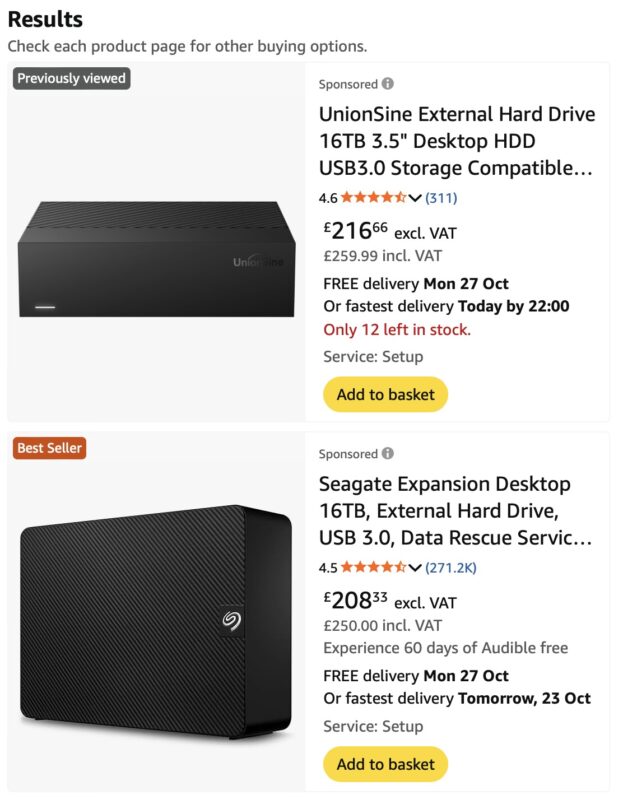
If you search for external hard drives on Amazon, you’ll see a vast selection of disks, with little more than price as a differentiator. Some of those are from established manufacturers, but others have curious1 names and very little reputation. What’s concerning is that we’ve found recertified (AKA, Used) drives being sold inside some of these supposedly new drives.
If you put an old motor in a new car, is it still a new car?
You might think buying used drives is OK, but recertified drives are usually marked in some way, and come with a lower cost. Then it’s up to you if you’d like to make the trade-off.
Quote from serverpartdeals.com
Emphasis mine.
SMART Data and Power-On Hours Both new and recertified drives have minimal SMART data and power-on hours. For Recertified drives, this is due to the Manufacturers wiping the SMART data during the recertification process. Meaning any previous data, if there was any, will be gone forever. Before our testing process, ALL Recertified drives will come to us with zero power on hours and zero power cycles.
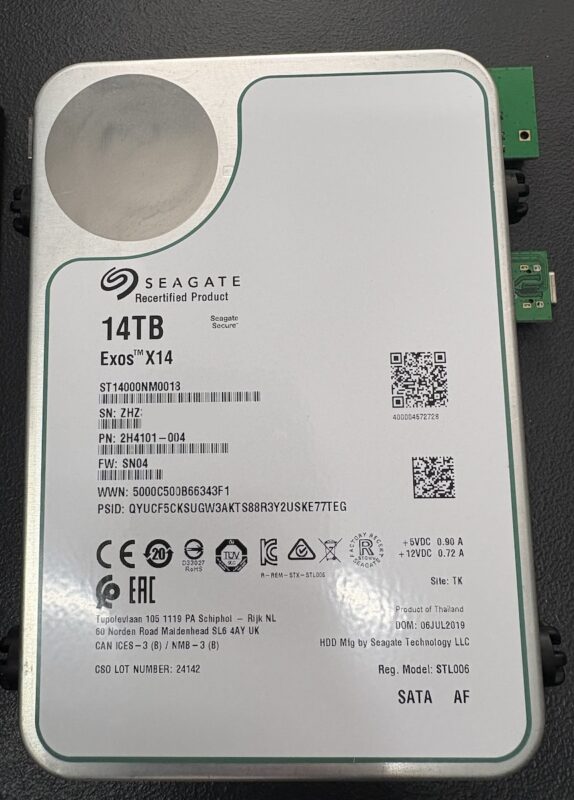
Labelling: Recertified drives are clearly marked to indicate their status: Seagate: Uses a different label that prominently denotes the drive as recertified. Toshiba and Western Digital: Provides smaller indicators of recertification, with small text on the regular label
So that’s all well and good, Seagate kindly put a big green stripe around the edge of their recertified labels. The problem is, when you put that recertified drive into a black plastic case, you can no longer see the label.
Due to some unknown Amazon economics, when I checked today, the recertified drive actually costs more than the equivalent one from the disk manufacturer itself. Who knows if the Seagate one also contains a recert drive too? (- I’ll let you know when I see inside one)
As if there wasn’t enough to worry about buying storage, you now have to wonder if your brand new disk has been used before.
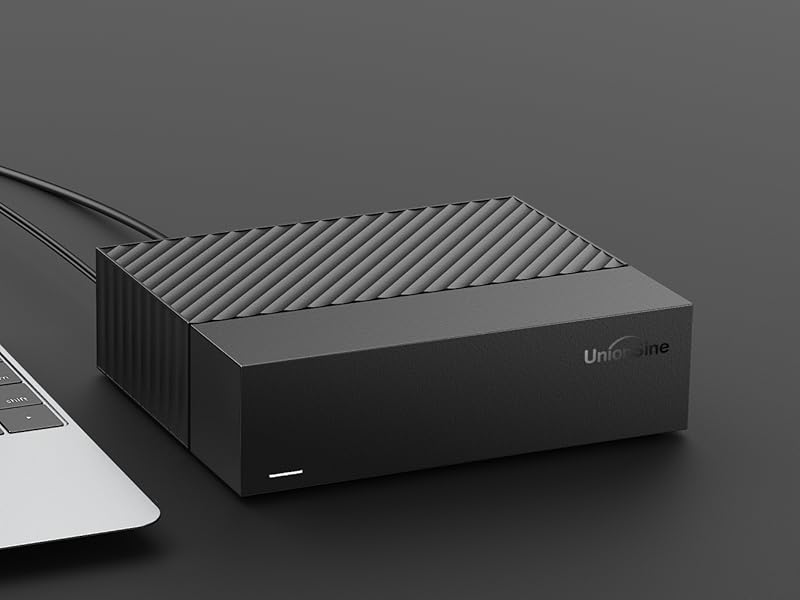
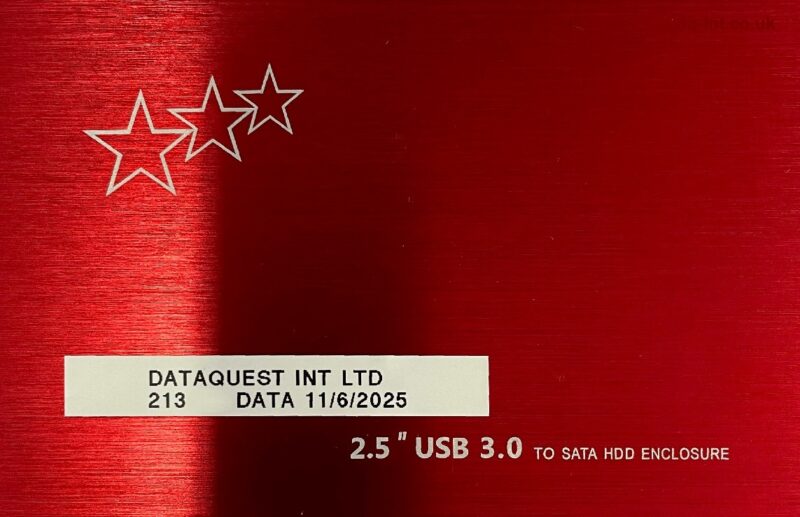
Amazon search for “14TB External Drive” (yes, the results are both 16TB 🤷♂️)A nice new case, but what horrors lie within?Recertified drive from a UnionSine External case.
Buyer Beware!
Footnotes
Ai generated? UnionSine, ezekers, Meyritech, ModusTech, fanxiang ↩︎
There are an awful lot of fakestoragedrivesavailable to buy online. These are not just cheap or low quality devices, but they are actively designed to trick you. They are fakes. Scams.
We just had another one sent to us to store customer data, so here’s our latest public announcement post.
Looks legit?
Cheap 4TB SSD (or is it?)
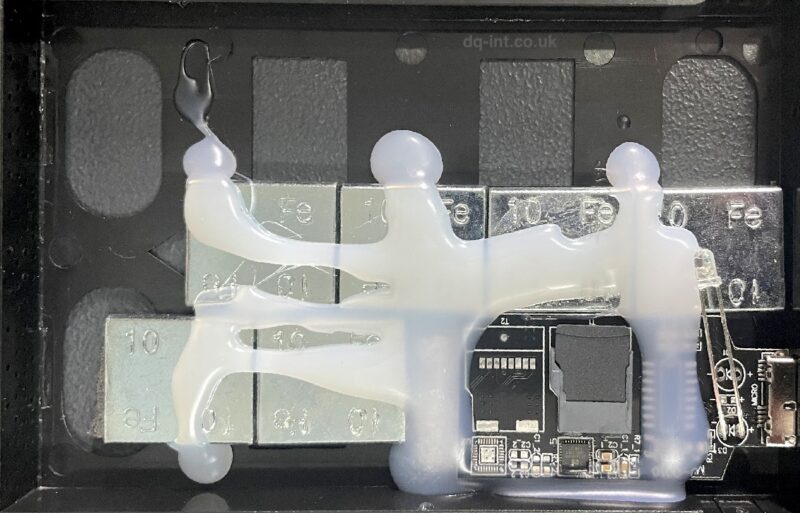
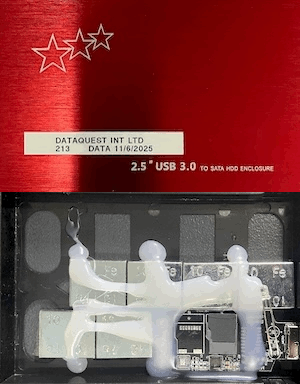
Not only do the fakes appear to be normal at first glance, they are hacked to appear as the advertised capacity to your computer. They come in all shapes and sizes to mimic real devices. And we just can’t resist opening them up to see what’s inside. This most recent one had an unbranded 58GB (!?) SD card hot-glued to a USB adapter board, and a bunch of wheel balancing weights stuck inside to give the illusion of a heftier item. These are not accidentally bad, they’re straight up scams.
Inside a fake 4TB SSD. Yes, those are weights used to balance car wheels!
Behind the mask 🎭
The worst thing about a 58GB SD card masquerading as a 4TB drive, is that the first 50GB of data you store on it will probably seem OK. The speed will be terrible compared to a real SSD, but you may not notice that. As you approach the limit of the storage, data is just discarded instead of being written, so you’d better hope your data exists somewhere else. If not, you’ve just sent it straight through a digital vaporiser. Also, that will usually cause the original 50GB of data to become corrupt, so it’s now all gone. In some cases the original 50GB may be recoverable, but the rest is definitely not. Instead of storage capacity you’ve got lumps of iron.
Thou shalt not judge a book by its cover Thou shalt not judge Lethal Weapon by Danny Glover Thou shalt not judge an external disk by its shiny aluminium cover
Remember the old adage “if it’s too good to be true then it probably is.”
Wheel balancing weights are not a good substitute for data storage media
We recently had an interesting case to recover. Although the disk was just a normal 20GB IBM Travelstar1 from circa 2001, the contents were not so common.
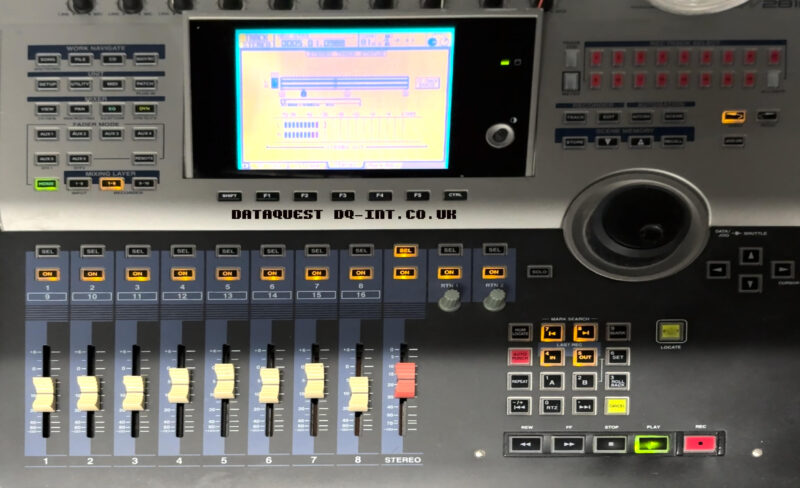
This disk was from a Yamaha Audio Workstation; A combination of a multi track recorder and mixer etc. It’s a lovely big lump of kit, with motorised faders and a graphical display.
Sounds Like Trouble
Problems started when the user was in the middle of an operation saving something, and the device stalled. After a hard-reboot, the disk was reportedly unreadable. Nightmare. There is no capability on-board to self repair a damaged disk, so that’s where we came in. We’ve recovered the data from similar machines, but never this exact one.
The Recovery
First things first, we connected the disk to our diagnostic kit. After a bit of complaining, the disk reached a ready state and allowed us to start reading sectors. We were a long way from success, but this was a good start. After a bit of back and forth, we eventually had a full copy of the whole disk. We transferred this copy to a suitable old 2.5″ disk, and installed it into the machine. The AW fired into life, and then reached a screen that reported “Loading Song Info…” at a frustrating 96% it stopped and reported an error.
Software
This machine doesn’t use PC formatted disks, so there was no software available to scan and discover the songs. After finding a Facebook group for the larger AW4416 device, I was lead to an obscure software tool that could interpret the disk format and extract songs, tracks or whole device backups. I tested the free version first and was able to read the song list and extract sample audio. That was good enough for me. I bought a license for the full tool, and got all the songs exported to Yamaha CFS backup files.
New Disk
The original plan was to convert the machine to CompactFlash. I’ve done many similar conversions for everything from CNC milling machines to iPods, and yet no combination of card or adapter would work reliably. The only thing that did work reliably was an old 4GB SanDisk Extreme III card. but that was too small to take all the songs. The newer 32GB Transcend 133x cards are reported to work, but didn’t for me.
Plan B
Instead I went though our stock of 2.5″ laptop disks and found a nice clean 60GB HDD from a Mac PowerBook G4. I tested and wiped it, and then installed into the AW. On boot up it asked if I wanted to format the blank disk so I did. Then I removed the disk again and attached it to the PC to reload all the song backups. After reinstalling into the AW2816 I was pleased to see the songs all loaded and playing & scrubbing through tracks without issue.
The workstation is now back with the user and being put through its paces. We’ve also advised on a backup regime to help avoid future disasters. It seems to be one of a minority with a functional CD burner, so the plan is: Regular song backups to CD, and periodic whole-disk backups to a computer.
Original Disk: IBM Travelstar IC25N020ATDA04-0
Replacement Disk: Fujitsu MHT2060AT
Footnotes
We’ve recovered 143 of these since we started tracking model numbers in 2003 ↩︎
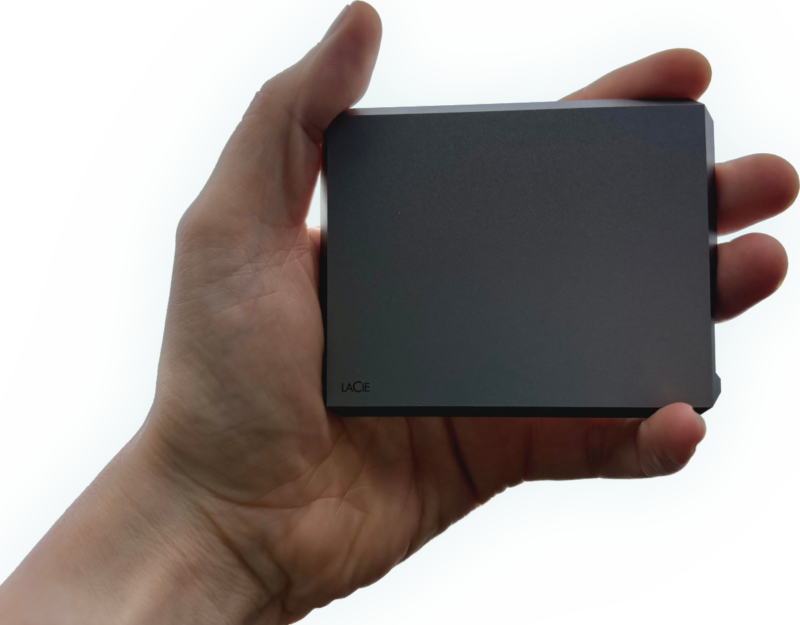
The first battle when attempting to recover one of these LaCie SSDs is getting into the thing! Fortunately LaCie have used this design before for external hard drives, so we’ve already figured it out. It’s not for the faint of heart though. You need to carefully, and delicately slip a strong bare Stanley blade into the seam on the back of the device. This is just thin enough to slide in without damaging the Aluminium, but strong enough to not snap. Warning, do not try this at home! There’s a knack to it, and you could easily slice off something fleshy by mistake.
LaCie External Mobile SSD
The next bonus is the controller chip — A Seagate branded Phison chip, for which we have excellent support in our tools.
The Diagnosis
When connected via the USB-C port, the bridge interface is correctly identified, but it shows no attached media. (Like a CD drive with no disc inserted.) This usually indicates that the bridge device is working OK, but the SSD is not.
When connected by SATA to our tools, we can see that the drive is stuck in Safe Mode, AKA Firmware Update Mode. The main clue is the capacity reported as just 2MB. This can happen when the drive firmware is unable to fully load, so instead reverts to safe mode.
In this case we can upload temporary custom firmware to the SSD and then read from the original NAND chips to find the data. The rebuild went well, and we were able to access all the files. Some errors were reported during the file extraction, so we suspect that one of the NAND chips had started to fail.
This was an excellent drive to work on, and the outcome was ideal. Fortunately nobody had messed with the drive before it got to us, so the NAND storage hadn’t fully degraded.
If you have a failed LaCie Mobile SSD and would like help getting it recovered…
Using a free Gmail account? You might not realize it could vanish without warning — and it may not even be your fault.
Here’s the catch: If someone tries to log in and gets your password wrong too many times, your account gets locked.
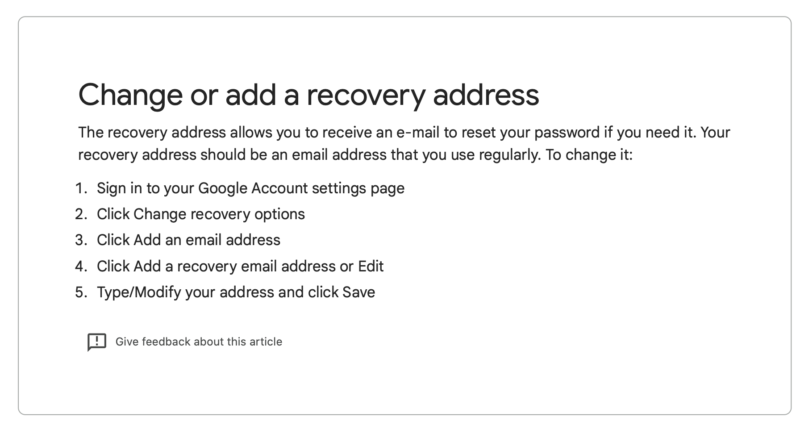
No big deal, right? Well, only if you’ve added a backup recovery email. If you haven’t, you’re stuck. There’s no way to unlock it, and free accounts don’t get any support from Google. That’s right — no one can help you, not even Google itself!
Deleting files and formatting disks just got a whole lot more dangerous!
Back in the good old days1, before fast SSDs, and multi Terabyte disks, if you accidentally deleted a file, you could be fairly confident that you could get it back. In classic Mac OS, it wasn’t uncommon to have Norton UnErase running every time your Mac shut down, to show a list of deleted files for you to optionally restore.
Not to be overdramatic, but those days are pretty much gone.
What changed?
With modern disks you cannot run a quick undelete to recover files. In fact, even powering on a disk after you deleted some files could actually destroy those files permanently.
For various technical reasons2, disks now need to keep track of which sectors are in use. This allows them to carry out background “housekeeping” tasks to keep the disks running smoothly. Modern operating systems issue a TRIM command when you empty the recycle bin, to let the disk know which sectors are no longer in-use. The disk will then erase those sectors and add them back to the pool of available sectors.
An example of some disks that likely wipe out deleted / formatted data
Western Digital (WD) My Passport drives from 2TB+
Seagate external drives from 2TB+
SD / microSD / SDHC / SDXC cards
m.2 SATA SSDs
m.2 NVMe SSDs
SATA SSDS
iPhones / iPads / Android phones & Tablets
+ Lots of other variations of the above!
If you’re unsure, you should safely unplug the disk ASAP, and get in touch. We’ll hopefully be able to let you know the chances of recovery.
Conclusion
If you accidentally delete some files, or accidentally format a modern disk, your chances of recovering those files are greatly reduced. Act fast and turn off the disk ASAP. You may prevent the data being lost for good, but it will likely need to be recovered by a professional. If that happens, you must let them know the situation, so they can handle it properly.
Good luck!
Footnotes
Before 2008 for MacBook Air users, with SSDs instead of HDDs ↩︎
Cheap / dense storage chips, or SMR hard drives ↩︎
Your quick response to an SSD with data loss could now make the difference between a successful or failed data recovery.
The Short Version
If you have an SSD with missing or deleted data, you must power off the device as fast (and safely) as possible to retain the data. You shouldn’t power the drive again after that. Even just powered up and idle, the SSD will run background processes to start cleaning out sectors marked as deleted. Like a snake eating its own tail, you’ll be destroying the data as you attempt to recover it. ♾️
The Long Version
Modern consumer SSDs use a combination of cheap multi1-layered flash storage chips, and smart software to spread out the written data over the whole device. Known as wear levelling, these algorithms are intended to prevent frequently used sectors from wearing out prematurely.
For context, on a traditional2 hard disk, every time you request a sector, the same sector gets shown3. If a sector had old data inside, you could recover it until the data was replaced with something else. This is the basis of all traditional wisdom about deleted files not really being deleted. However, on a wear-levelled SSD you can never be so sure. The first time you save a file, it will get written to one sector from the pool. Once you delete the file stored there, if you request the same sector, the SSD will shuffle the pack and give you a fresh new sector from somewhere else. This drastically reduces the opportunity to recover deleted files.
There is an additional problem when you add TRIM into the mix. When carrying out certain disk tasks like emptying the recycle bin or reformatting, the operating system also sends a TRIM command. This lets the SSD know which sectors are no longer in use. From this moment, you have a matter of seconds or minutes to power off the device before it starts erasing those blocks of data.
A Solution
If you power off your disk in time, we have tools that allow us to load custom firmware on many brands of SSD. This firmware runs temporarily on the SSD RAM before the normal SSD tasks can start. This blocks the SSD from making any further changes to the stored data. If caught early, this can be enough to allow us to extract the missing files.
If not caught early, there is still more we can do. We can attempt to rebuild maps of sectors that were recently TRIMmed, and add these back to our clone drive. This is less than perfect, as usually some of that data has already gone. In many cases some data is better than nothing!
For a long time, we had to treat SSDs much the same as hard drives. Now we have specific tools and procedures in place to make sure we can still extract the maximum possible data from them.
If you’ve lost data from any device, get in touch as soon as possible. We never want to see people losing data, so we’ll always advise the best way forward.