Reports came in over the weekend about a nasty problem caused by installing the new release of macOS Big Sur. If you have a 2013 / 2014 MacBook Pro, it’s best to wait for Apple to release a fix before you attempt to install the update.
If you’ve already installed the update
Although you may not be able to boot the laptop, and all startup keys will fail to get it going, we will still be able to recover your data from MacBooks effected by this problem.
You need to proceed very carefully, as some online advice suggests erasing the Mac which means you’ll lose all your data!
It’s been a longtimesince I’ve written about iPods on this blog. 2008 was the last post I could find.
In that time, SD cards have become so cheap they’re almost disposable, and iPods have virtually disappeared from normal life. But I still have one, and I still love it. I built this FrankenPod about ten years ago from a pile of broken iPods so it’s always looked a mess. The back cover came from an 80GB iPod Classic, an 80GB hard drive from a MacBook Air, and all the other internal parts were scavenged from various broken iPods. The plastic screen was already covered in scratches, so I never felt too bad about stuffing it into a pocket with coins or other junk. Not my usual style!
Upgrade Time
The battery had started to show its age so I set about replacing it. I assume parts will eventually start getting hard to find, but eBay is still full of spares for now.
I had to dismantle the iPod to replace the battery anyway, so I had a look at the other parts to see what else I could fix up. Then I remembered the iFlash adapter. I’d previously used a similar adapter to add a Compact Flash card to an iPod 4G, so I checked to see if there was an updated ZIF adapter. There sure is! And better yet, it works with super cheap, fairly fast SD cards. Add that to the parts list.
Fortunately, the scratched exterior screen on this iPod has protected the delicate LCD screen inside, which is still in perfect condition. The Clickwheel™️, headphone port, and dock connector are all in good enough condition to keep.
My original plan for the front case of the iPod was to strip it down to bare metal and then prime and repaint it. I wanted something unique so thought I’d end up going for a bright yellow or chrome effect paint.
Enter The Rat 🐀
Scruffy Rat VW Bus
I started sanding the surface and realised how tough the anodised metal is. How it got so scratched up is a genuine mystery. I think this thing would survive a nuclear war. I went to work with sanding disks, grinding wheels and all sorts of abrasives and barely got through the top layer. As I was sanding, I started to like the way the iPod looked. My new idea was a RatPod. In the style of rat bikes, I would leave the outer surface looking messed up, but upgrade the internal parts. I couldn’t bear looking through the scratched screen though so still went for a replacement on that. I finished sanding the rough bits off, and making the surface silky smooth. The way all the edges are outlined by bare shiny aluminium looks pretty cool 😎.
iFlash
I chose the iFlash Solo for this project. This lets me swap the hard drive for a cheap SD card. My iTunes Library is only around 35GB so a single 64GB SD card will give me plenty of space for the future. (iFlash also sell adapters that take mSATA SSDs, or multiple SD cards for up to 1TB of music.) They ran a test a few years back about different storage options and found that microSD cards are pretty hard to beat for cost & power consumption, at the loss of a tiny amount of speed. They’re still way quicker than the old HDD, so that’s what I went with. The iFlash Solo has a full size SD slot, so I used the micro adapter that came with the Sandisk card.
Restore
While waiting for the screen glass to be delivered from China, I decided to connect all the other new parts and test the iFlash adapter. With everything loosely assembled I plugged in the USB cable, launched iTunes, clicked “Restore” and then…
The iPod could not be restored. An unknown error occurred (1394). ⚠️
Uh oh ☹️. I clicked “More Information” and expected the usual generic message. Instead I actually got a clue. It said the restore may fail if the battery is too flat. I can’t help but wonder how long this battery had sat in a box before I bought it. Anyway, I waited impatiently until the iPod was fully charged and then boom! iPod restored without issues. I loaded up some music and gave it a play. It works fine, and nice and quick.
The Finished Article
The finished iPod Classic.
I’ve only had this finished for about a week, but already there are a few things to note:
Starts playing music almost instantly
Feels really lightweight
Now shockproof
Perfect in the car
With the new battery, this thing lasts forever!
I was worried about support in macOS Catalina, but it’s OK
Update After a Week of Use
I had a few teething troubles with the iPod that didn’t appear immediately. After a few days working fine, I started getting intermittent skipped songs, or the iPod would just stop playing in the middle of an album. If left in this state, the iPod would eventually run out of battery and then need to be plugged in to bring back to life.
HFS+ What?
As I was using this iPod with my Mac, it gets reformatted to HFS+ during a restore. Information about MacPods is hard to find, but often the Windows formatted iPods need to be reformatted a particular way to prevent issues. As an attempted workaround, I’m currently using the iPod formatted for Windows, to see if that sorts out the skipping problem. You can use Windows formatted iPods on Mac but not the other way around. I’ll see how it goes.
Update 2021
Despite working mostly OK, I still had some occasional freezes with this iPod. I decided to crack it open again and try a different brand of SD card. I got a Samsung EVO plus 64GB, and touch wood, it’s been fine since. I’ve since checked the compatibility chart on iFlash, and it does have reports of problems with the SanDisk card I used before.
On your iPhone when data such as photos and contacts are deleted, in most cases due to encryption your data is lost forever.
One of the ways deleted data can be retrieved is by actually skipping the phone itself and heading for backups. Many phones automatically back up to the user’s computer or to the cloud. It can be easier to extract the data from the backup than the phone. Obviously the level of success depends on how recently the phone was backed up and the service used to store the files.
Apple’s PCIe SSDs have always proven challenging for data recovery. We have a good success rate with them, however many of our tools don’t even support working at PCI level. This particular SSD provided a new challenge though.
The SSD we received was initially showing up correctly in the system. Upon access, the disk would read a few bytes and then stop reading. The SSD would remain visible to the system but not respond to any further commands. The only way to bring it back was to cycle power. Yep, the IT classic — Turn it off and on again! The problem is, PCI cards don’t come with on-off switches so the solution needed to work within software.
Brainstorming
First I thought a copy task with a scheduled reboot may get the device back online, however I quickly found out PCI slots stay powered on during a reboot 🤦♀️ This means once the device gets stuck, a reboot won’t bring it back on.
My second idea was to schedule shutdowns but the time taken to boot and then restart the copy process seemed like a nightmare.
The Solution
In the end I found a series of commands which could keep a fairly steady copy process going. The main idea was:
Start a copy task
Pause on error
Toggle the PCI connection using low-level commands
Resume the copy task
Rinse & repeat
Although not the most elegant solution, this process cycled through 647 times, taking an average of 760MB per cycle. In less than 24 hours the whole 512GB device was cloned to another disk ready for recovery.
After this script finished I did find a slightly cleaner way to reset the PCI slot which will result in much faster recoveries in the future.
I was unable to find any mention of this type of recovery online, so if anyone else knows about it, they’re keeping it to themselves. If you know anyone with a failed Mac SSD, get in touch. This is just one of the many solutions we have for recovering them.
Urgent Warning: Fusion Drive always consists of two separate disks. If you want your data back you must get both parts. We’ve heard a number of reports that users with failed Fusion Drives are only given the Hard Disk back when receiving Apple repairs. On its own, the hard drive is not enough to recover all data in original condition. This is especially true if FileVault encryption is used.
HDD + SSD = Fusion Drive.
What is Fusion Drive?
Fusion Drive is Apple’s version of a hybrid solid state & mechanical disk. It combines a small fast SSD with a large slow hard drive to achieve a balance between cost & performance. Frequently used files are moved to the SSD, and old stale data is sent to the slow hard drive. This is all taken care of automatically behind the scenes. Unless you dig into the terminal, you wouldn’t even know you had two separate disks inside the Mac. Fusion Drive is part of Apple’s Core Storage system. It is somewhat similar to Linux LVM as a volume management system.
What Fusion Drive is not
Fusion Drive does not use the SSD as a cache for files but actually moves data from one disk to the other. This is important, as both disks are required for full recovery.
Why does Fusion Drive exist?
At launch, and even now, the cost for large capacity SSDs is way higher than the cost of an equivalent hard drive. The problem is that SSDs offer huge benefits to the user experience. When you use an SSD, you hardly ever have to wait for things to load. The computer boots up within seconds.
Hybrid drives aim to bridge the gap between solid state and mechanical disks. An iMac with a 3TB Fusion Drive comes with some of the benefits of SSDs, but much less cost. As the cost of SSDs fall, the need for Fusion Drive will eventually disappear. Apple has shown with their current lineup that they’d much rather go all-SSD where possible. Current iMac Pro & MacBook Pro both use 100% SSD internal storage.
Anecdote Corner
We’ve had two recent cases where a user has brought a “Fusion Drive” to us for recovery, but actually only had the hard drive part. Apple had given the damaged hard drive back after replacement, but reused the SSD when creating a new Fusion Drive. This user only had a few GB of data so the Hard Drive hadn’t even been used yet. All the data was stored on the SSD which was now overwritten.
The majority of Fusion Drives we’ve seen have a Seagate ST3000DM001 3TB hard drive combined with a 128GB blade SSD.
We’ve seen a few cases recently where a user has unexpected lost all data, and been left with a disk named OS X Base System. Inside the disk is a file named Install macOS Sierra or Install macOS High Sierra, and a few other system files.
The OS X Base System is usually part of a macOS installer or update, so it’s unclear how disks ended up getting replaced with this.
If this has happened to you, we’d love to hear more about how.
We can usually recover these disks, but it’s really important that you stop using the disk as soon as possible. If you install anything to the disk you could risk losing all the data permanently.
We’ve still got more of these to investigate so we’ll update the post when we’ve learned more.
The MacBook Pro (Late 2016) comes with 50% more escape key than you’ll ever need. It also comes with a strange SSD so we had to get creative to recover them.
In short, we can recover them! More info at the link below.
I have a particularly nerdy Apple rabbit hole to share with you today involving the labels on Apple hard drives. At some point around 2007-2008 Apple started re-labelling the hard drives used in their computers. I’m pretty sure the hard drives in black & white MacBooks were standard white labels with an Apple part number (655-XXXX) printed on them. Now disks feature a black label with white text. Not particularly exciting, but maybe somebody (Jony?) wanted the disks to match the fancy black circuit boards now used in all Apple hardware. That’s the sort of attention to detail we’ve come to love from Apple devices. Whatever the reason, this has resulted in a batch of Toshiba drives in circulation with incorrect information printed on them. I assume these are the result of a simple ⌘+C, ⌘+V error. My speculation is that after printing the labels for the 320GB disk nobody remembered to change the text for the 160GB version.
For reference MK3253GSX is 320GB and MK1653GSX is 160GB. In Apple’s world, both disks use MK3253GSX on the label, even though the correct number is shown when you check Disk Utility or About This Mac > System Information.
This wonky number business all came to a head ? when we were looking for replacement parts for one of these disks. We needed the double headed 160GB drive, not the four headed 320GB.
Mislabelled Apple Hard Drives MK3253GSX MK1653GSX
When I was trying to research this, I was quite suprised to find an old blog post of ours that shows the same problem with Hitachi drives manufactured around the same time. I’ve not found any other mention of this labelling fault, so thought I’d post it up here for future Mac Archaeologists to find.
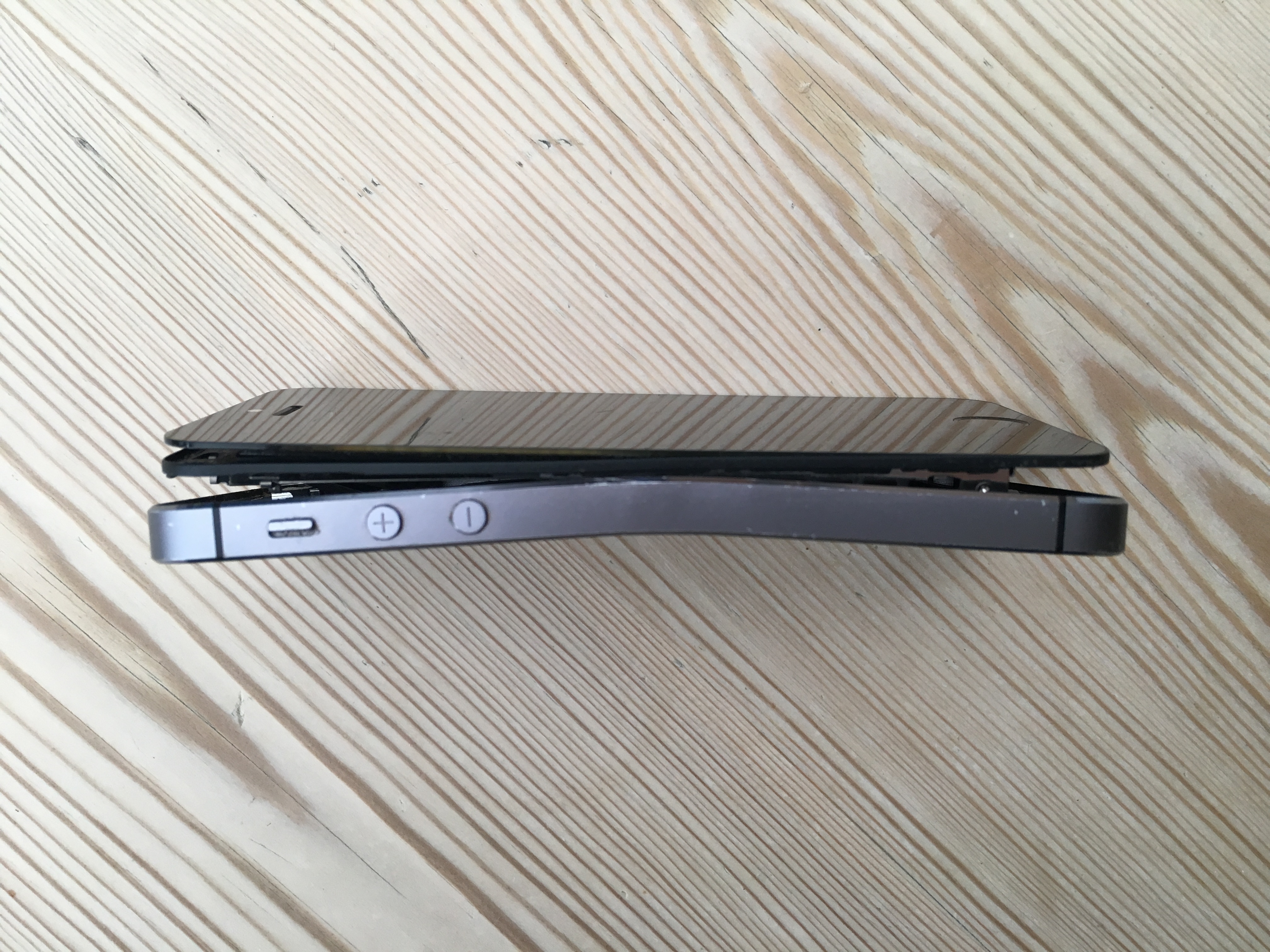
We’ve had our fairshare of unusual and difficult recoveries over the years, but I have to share a photo of this bent iPhone we recently recovered. It’s an iPhone 5s that has seen better days. I’d love to know how anyone could bend a phone that far without also smashing the screen! It’s impressive.
As always, my first concern was extracting the damaged Lithium battery. I removed that straight away and disposed of it before starting the recovery.
With a bit of TLC and a new battery and screen, the phone was just about working. It stayed working long enough to get an iTunes backup, and extract all the data.
If you have a MacBook or MacBook Pro that’s a few years old, you might have a problem hiding right below your fingertips. If your trackpad has become difficult to press, or stopped clicking all together, you could have a dangerous faulty battery. In MacBook & MacBook Pro laptops, the battery is directly below the trackpad. When the battery fails it can expand, pressing into the bottom of the trackpad.
Stuck MacBook Trackpad Bulging Battery
Explosion?
I’m not sure quite how risky these batteries get, but they almost double in size. Standard battery advice says don’t pierce or burn but when these battery start expanding they could easily get punctured. I saw one so bad last week that the bottom case and trackpad were being pushed apart. (see photo below)
Bulging Battery From A MacBook
Check
If you click the battery ? icon near the clock at the top-right of your Mac screen you can check the status. (If you don’t see the status, press the option (alt) key before clicking the battery icon.)
MacBook Service Battery
From Apple’s help document
You may see any of the following conditions:
Normal: The battery is functioning normally.
Replace Soon: The battery is functioning normally but holds less charge than it did when it was new.
Replace Now: The battery is functioning normally but holds significantly less charge than it did when it was new. You can continue to use the battery until you replace it without harming your computer.
Service Battery: The battery isn’t functioning normally, and you may or may not notice a change in its behavior or the amount of charge it holds. Take your computer in for service. You can continue to use your battery before it’s checked without harming your computer.
What Next
If your status shows Replace Now or Service Battery, I would look to get the battery replaced as soon as possible. At the very least, a bulging battery could cause cosmetic damage to your Mac. At worst it could potentially leak or catch fire ?.

 In the course of recovering data for our