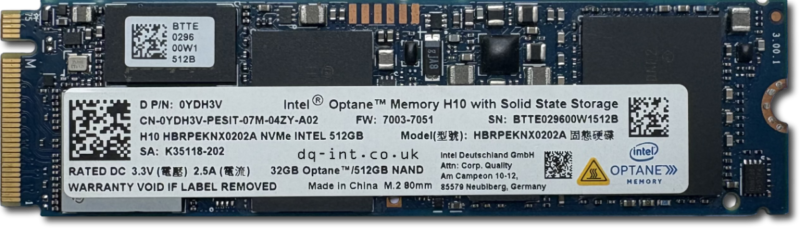
Intel Optane has been around for a while, and can improve SSD performance by combining “Optane Memory” (fast storage) and a standard SSD. For servers this requires plugging in independent Optane devices. The H10 SSD however comes as a single standard form factor m.2 SSD. The two devices are created by internally splitting the PCIe lanes and providing two separate SSDs over the same connector: one small and fast, the other larger and relatively slower. This allows the host computer to create a lop-sided RAID or cache, where the benefits of both devices are seamlessly blended together to create a large capacity and faster SSD. That is, until something goes wrong. If either half has a problem, the whole thing stops working.
Note: This is similar to Apple’s Fusion Drive system which uses a separate hard drive and SSD to achieve even larger combined drives, but at the expense of speed.
Symptoms of a Failed Optane SSD
After failing to boot, a common symptom of a failed Optane H10 SSD is that any attempts to recover the data will yield an almost empty Windows volume, with little or no user data. They almost appear as a fresh install. If you fail to correctly combine the two devices, you’ll get a very poor recovery result.
Using professional data recovery hardware, we can address the two devices independently, and read and repair them. We can then take a copy of each device, and recombine them in software to gain access to the data.
If you need Optane recovery, let us know.
Contact Us Now…
For a fast reply from a real person.
Issues
Another potential roadblock here is Bitlocker encryption. It is supposed to be impossible to enable bitlocker without making a key backup to a Microsoft account, but we’ve seen countless cases where this went wrong. Effectively locking the disk and throwing away the key.
We’ve seen a few clear cases now where somebody has made an enquiry for data recovery with us using an AI1 tool. I’m not calling this out to be mean, I just really don’t understand the point. To give the benefit of the doubt, it appears that the tool was probably used to flesh out the enquiry for some reason. Maybe to make it seem more professional? Unfortunately, it made up details that are wrong, and added zero benefit to the enquiry.
It’s true that most people needing data recovery don’t necessarily have a huge amount of diagnostic tools available, so our ideal enquiry is something like this:
Hi, I was using my hard disk yesterday as normal, and when I plugged it in today, the disk is not showing up on my computer. Can you help?
That’s it. We’ll figure out the rest. We don’t expect any technical info, just the real events that lead up to the problem. Was it dropped, was the data deleted, did it get wet, etc.
On the other hand, here’s the actual enquiry we got that has a few hallmarks of something written (or re-written) by AI:
Hello,
I have an external hard drive (brand: LaCie Rugged Mini) that is not visible in Windows’ File Explorer or Disk Management, although Windows Device Manager detects the drive model and the drive spins up normally.
Here are the key details I’ve gathered:
Drive model: ST500LM000‑SSHD (approx. 465 GB)
Windows Volumes tool reports full capacity (~476,940 MB)
Disk Management does not show the drive as a separate disk (only the internal system disk is shown)
I have already removed it from its enclosure and connected via SATA‑USB adapter — status unchanged
It appears the partition table / filesystem is corrupted or missing rather than the drive being completely dead.
I would like a full quotation for:
Diagnostic / evaluation of the drive (what you charge for this)
Estimate of the cost for full data recovery (restoring partition and/or retrieving files)
Turnaround time for each phase
Whether you offer a “no data, no fee” guarantee
If you need any further information (e.g., serial number, past usage, screenshots of Windows tools) please let me know.
Many thanks for your time and I look forward to receiving your quote.
Best regards,
We do occasionally get enquiries that contain a lot of detail, and that’s fine. I’m not complaining about detail. The problem here is that the details listed above are untrue. The only thing that’s definitely true is that the drive is a LaCie Rugged Mini.
What’s Wrong?
Wrong drive model (We received a 4TB mechanical disk, not a 500GB SSHD)
What is the Windows Volumes Tool? (Does this mean the Disks & volumes screen in Windows Settings?)
The partition table / filesystem status cannot be known at this stage, as the disk is stuck in a Busy status
List of pointless questions that are already answered on the website where our contact info is found:
Cost for diagnosis
Cost for recovery
Turnaround times
No-fix no-fee
Other Quirks
This message contains bold, italics, bullets, a numbered list, a Tilde! ~ (I use these a lot, but I don’t think I’ve ever seen one in the wild before.) It’s very unusual for an email to contain so much formatting.
A Surprising Outcome
I was quite surprised when the disk actually arrived for recovery. I assumed it was just another bot filling in our web form on a break from counting electric sheep. 🐑🐏🐑🐑🐑🐑🐑🐑🐑
Fortunately, the contents of the enquiry in this case didn’t contain enough wrong information to change the approach we took with the recovery. Data recovery was successful after some firmware level repairs. But what if the AI had invented water damage, or decided that the disks had been dismantled without cleanroom facilities? At the very least it could have wasted our time and effort, and at worst, could have cost the user more money.
What’s the point?
If you can think of a genuinely good reason for this whole thing, I’d love to hear it. I just find it impossible to understand the thought process that went into making a fictionalised enquiry instead of just telling us what really happened. If people use this sort of tool in other parts of their life, what do they gain? With their car mechanic, what sort of unnecessary work could be carried out? Or worse, a message to their doctor?
In the News
I stopped for lunch in the middle of writing this, and saw on the news that West Midlands Police have got in trouble for citing unrest at an imaginary football match as a reason to ban another football match.
Guildford’s retirement came after he admitted inaccuracies in evidence to a Commons committee, including a denial the force had used AI to research evidence, including a non-existent match between the Israeli club and West Ham.
A helium hard drive is a mechanical hard disk drive with an internal enclosure filled with helium gas instead of oxygen. The enclosure is then hermetically sealed to slow the escape of gas. Helium creates a unique low density environment where the internal hardware can operate more efficiently resulting in less turbulence compared to air. With less rigidity in platter thickness required, this allows manufacturers to increase hard drive capacity by adding more slimmer platters into the same amount of space.
The Data Recovery Challenges
Less turbulence means less resistance so ideally opening a helium hard drive would be carried out in a helium filled environment. We have been successful in carrying out internal rework to allow access and attempt data recovery from helium hard drives in our clean room environment by using a strict and controlled process.
Cutting Open a Helium Hard Drive
Helium hard drives have a sealed aluminium top cover that is welded to its outer casting, so needs to be forcibly removed using a sharp implement. Some videos online show people using CNC mills, or saws to open the case, however we found1 that these allow small particles of metal to find their way inside the enclosure. This top cover keeps the helium gas trapped inside the hard drive. Once the external aluminium cover is removed the hard drive can then be taken into our clean room for decontamination. The internal cover can then be removed to carry out any internal rework required and then replaced once complete. The process of accessing the helium hard drive for data recovery uses the same hardware and technology as with standard hard drives. ie. Mapping used sectors, cloning to a working disk, and then extracting the files.
Parts
Helium filled disks are some of the largest on the market, so donor parts can work out expensive. In some cases the parts can cost as much as the recovery itself, especially when we need to match a certain revision or date of manufacture.
The Outcome
Recovering data from a helium disk is often a challenge, but something we’re happy to take on. Now if only all hard disks had a welded top cover, we’d never have to worry about people opening disks outside of the cleanroom any more!
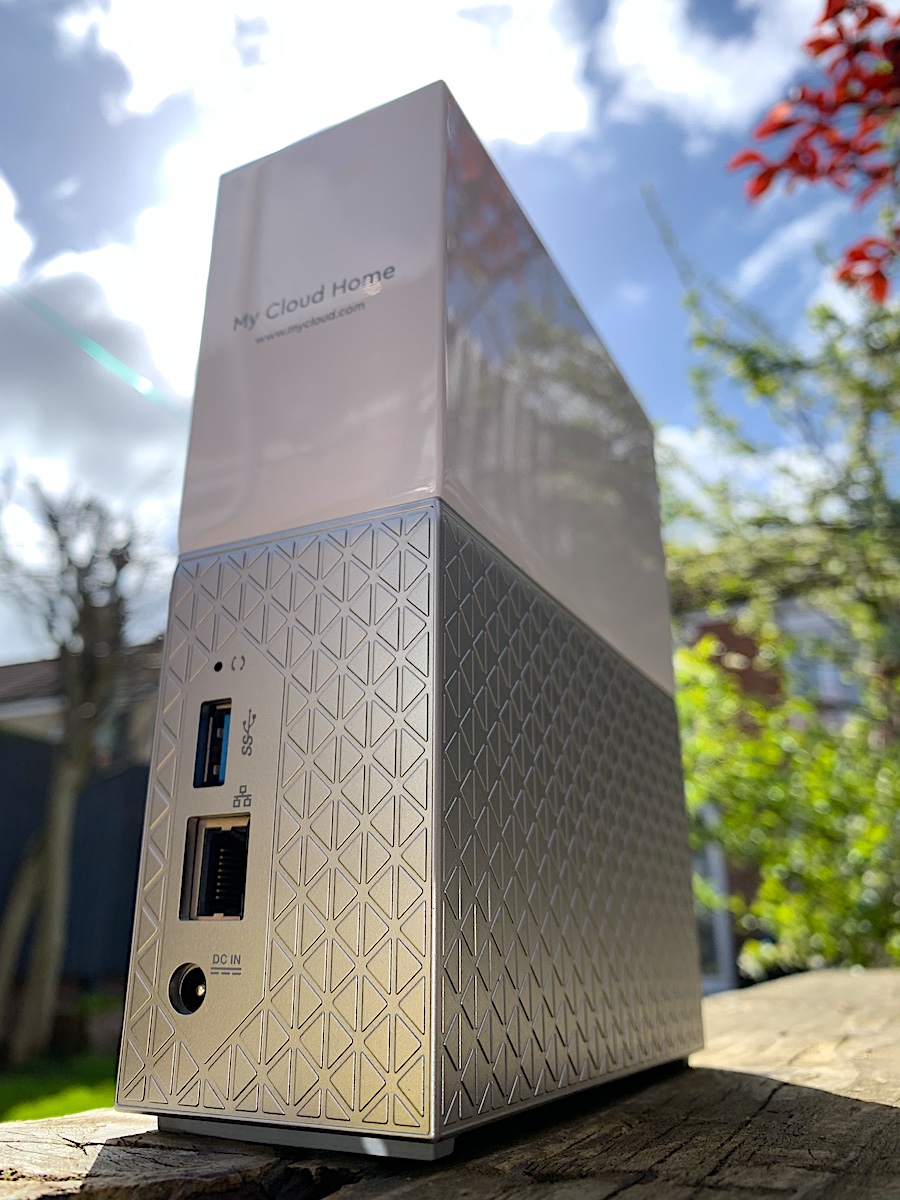
In the last few days, we’ve heard that hard drive manufacturer Western Digital have suffered a major outage with their web services. Unfortunately due to the way these NAS drives use a web service to login, it means when the web service is down, you cannot login to your own device.
Nobody knows if WD can bring the service back online at some point, or how long that could take. In the meantime, we’ve now recovered a few of these drives, so if you need access to your data, get in touch.
In the last few years, soldered storage has gone from a strange Apple quirk, to a standard way of manufacturing laptops. There was outrage when apple first started soldering RAM and storage, but you’ll now find soldered SSDs in laptops from Microsoft, HP, Dell, and any other manufacturer you can think of. That’s not to mention all the millions of phones & tablets with soldered storage.
Benefits
From a manufacturing point of view, soldering the SSDs makes sense. Fewer “bulky” connectors on the motherboard can lead to thinner and lighter computers. Because a 5mm thick laptop is just not thin enough! There are also performance benefits by integrating the components closer together. See the PlayStation 5 and M1/M2 Macs for examples of that performance taken to the extreme.
Recovery Problems
But there are huge downsides to soldered storage when things go wrong. You can’t just whip out the SSD and access the files. And even if you went to the trouble of desoldering the chips, you’ll often find they are encrypted. In some cases the only way forward is to attempt to repair the original damaged motherboard, or transfer numerous undocumented components to a working replacement board. Lack of schematics from the manufacturers mean this type of work is often time consuming, and therefore expensive.
E-Waste
Even ignoring the problems with recovering data from soldered parts, there is a new problem of electronic waste. When a pluggable SSD or RAM module fails, it can be replaced. If those parts are soldered to the board, you’re probably sending the whole thing off to landfill, or “recycling” as it’s sometimes known.
Solutions
The number of recovery options are as varied as the devices themselves. If you have a faulty device with soldered storage, get in touch. In many cases there are ways to recover the data.
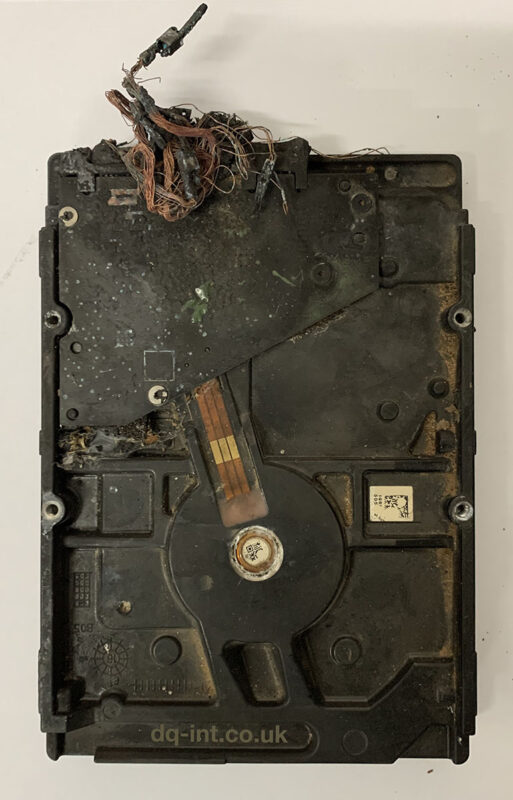
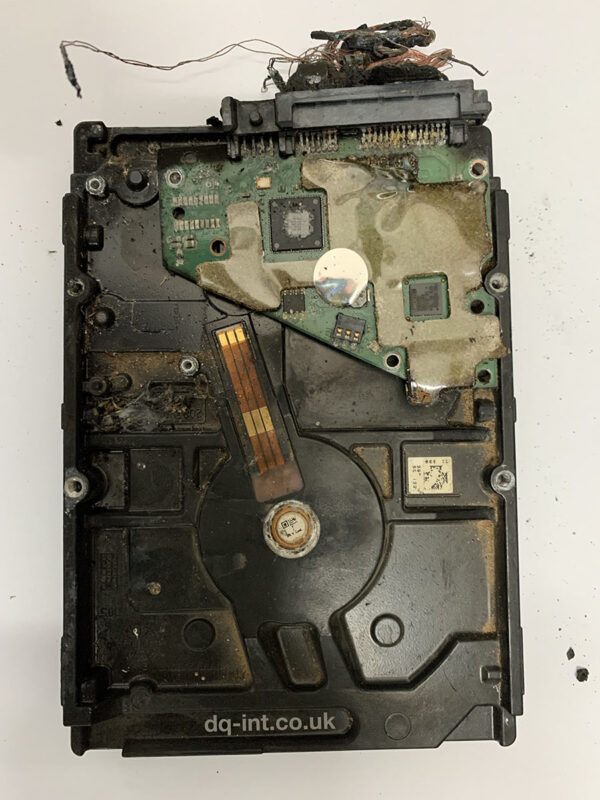
We recently completed an extremely difficult recovery from a fire damaged hard drive. The drive was stolen from an Annke CCTV system during a burglary and then set on fire.
This is what we received:
Photo of a burnt Seagate Hard Drive
Despite looking like it had fallen from space, we could recognise that it was a Seagate drive. Most of the label was burnt off.
Where to start with the recovery
It’s easy to get overwhelmed by a case like this, but it’s important to break the problem down into manageable chunks. First we needed to extract the unique information from the circuit board (PCB). The board was black and charred from the outside, but the delicate underside was still green, and it looked like the main components survived. With a little bit of a clean-up we were able to read the required info and transfer it to a suitable (non-burned) donor board.
Seagate Burnt Circuit Board (PCB)
Next, we needed to turn our attention to the inside of the drive. We gave the outside a thorough clean first, to avoid transferring contamination inside. Then we opened up the drive to assess the damage. The gasket between the top cover and main device had turned to a gluey mess, so we had to be careful separating the two.
It’s important to point out that we haven’t attempted to power up the drive so far. Spinning up a drive in this state will never end well, and it’s a good job we didn’t. The heads were melted into a plastic blob that was once a parking ramp, and the particle filter was transformed into a stiff little pillow. By some miracle, the discs (platters) themselves were in surprisingly good condition. The pack of discs was also turning freely, so the motor was not stuck.
Seagate heads melted into their parking ramp
We replaced the filter with one from a similar drive, but the heads would be the real challenge. It wasn’t possible to read the exact label information (it was burnt off), so confirming a match for a suitable donor was a challenge. We could read some of this missing info from the circuit board that we’d backed up earlier. There was another worrying sign on what was left of the label. A warning that the Warranty was valid only in China, and Exclusive to China. We worried about trying to source such a drive if it was only intended for the Chinese market.
Shrunken particle filter
We did find a suitable donor, and installed the new heads and parking ramp into the drive. We also borrowed the new top-cover as it was clean, and still had a proper gasket.
Moment of truth
The drive came ready, and although it was reporting some problems, allowed basic access. We were able to carry out our usual Seagate process, and start cloning sectors to another drive. This process went extremely well, and only tripped up a handful of times. In the end after multiple passes, we had skipped just 100MB of the drive due to errors, and successfully extracted the 2-3TB of CCTV footage.
In total, the whole process took just under three months, mostly due to delays finding a suitable matching donor, and then the careful imaging process.
The best part of the story is that the burglar was clearly visible in the footage so will hopefully be brought to justice.
The last time we posted about these drives was 2015, and we’re seeing another surge of these drives failing again.
In the past week alone, we’ve seen two separate pairs of RAID mirrors (four drives total), an iMac Fusion Drive, a standalone iMac drive and an external Seagate backup drive from a PC. All failed with no known impact, and all unrecoverable due to media damage.
What is media damage?
In a hard drive, the discs are the media, and damage is caused by impact from the heads or another internal part. Usually this takes a certain amount of force and will be the result of the drive being dropped or knocked over. For some reason, these Seagate drives seem to also succumb to damage without any known impact.
ST1000DM001 RAID Disk
Is it just a head crash?
Yes it is. However head crash is a very specific term that has now been abused to mean many other general faults. It’s very common to hear people talk about a crashed hard drive, when all they really mean is the drive is not accessible.
Is this unusual?
For other common hard drives, when parts wear out or fail, it doesn’t usually result in media damage. Often we can replace the heads and get the drive running, at least well enough to extract the data one last time. Dropped drives always run the risk of media damage, but drives do have protection from such impacts, so it’s always worth pursuing if the data is important.
What’s the answer?
If you’ve already got a failed Seagate drive, get in touch with us ASAP, as there really is a limited window of opportunity to get the data back when these fail. Recovery is possible if we get them soon enough!
If you’ve got any of these drives installed anywhere, it’s probably a good idea to backup and migrate over to some new disks as soon as you can. We don’t give specific brand recommendations, as we strongly believe in running a full-time backup regardless of the disk you choose. In an ideal world, any disk you own should be replaceable without any loss of data by loading from a backup.
Disks to watch out for
ST2000DM001
ST2000DM006
ST3000DM001
Seagate Barracuda
Seagate Desktop Hard Drive
There may be other similar model numbers too. These are particularly risky in consumer RAIDs, as it’s common to either not notice when the first one fails, or to get two failures in quick succession.
Our data recovery process almost always begins with a copy process. Otherwise known as cloning or imaging, we attempt to copy every data block from the failed disk to another disk.
With a normal disk, we can record how long it takes to copy a block, then multiply by the total number of blocks to calculate how long the process will take.
Cloning a Normal Disk
With a faulty disk, this is not possible. A faulty disk will often read different blocks at different speeds depending on how bad the problem is. Until we read the block, there’s no way to know how long it will take. This is illustrated in the animation below. (Sorry, the GIF below is quite large so may take a while to load.)
Cloning a Failed Disk
With a faulty disk, we have to keep copying blocks until we get all the data. You can see from the animation above that it’s impossible to know how many slow blocks are coming up, versus good blocks.
This is the third part of a mini-series about copying data.
We don’t often get much call to recover CDs anymore, but this recent case was interesting. We received a set of five CDRs labelled image library backup 2002. The user had no idea what software created them, and just a vague memory that they may have been burned from a Windows 98 PC.
Step 1… Read the discs
As usual, our first task is to read all the discs, and in this case save them to image files (ISO / Bin Files) for scanning later. Due to their age (19 years!), I expected this to be the hard part, but all the discs read well. Good work pink Verbatim DataLifePlus®! In fact there were just six unreadable sectors near the end of the final disc. This seemed like a good point to begin the next phase, and actually see what files I could get from them.
Where the problems start
Mounting the disc images, just showed a single, (un)helpful file.
Backup CD. This is a backup CD. Except for this file the contents of this disc must be accessed using your backup software
Readme.txt (2002)
The reason for such a vague message became clear later. The companies behind this software went through a number of years where they were sold, resold, sold again, rebranded, you name it. I suppose the generic message saved them having to update the code for every different version of the software.
Hex editing
I had a bit of a poke around inside the image files, to look for clues. Aside from the text above, the vast majority of the discs looked like compressed data. This is bad news if you don’t know what compressed them! There were a few little nuggets of metadata, and a few promising repeating strings. These strings lead me to this page. There were some similarities between my disc images, and the example headers from Will’s Zip Disk images. I tried the tools provided by Will, but couldn’t get them to work with my files. I contacted Will to see if he had any ideas, and he was extremely helpful and interested in the project.
The old web
In 2002, it was far more likely that you got your software on floppy disks or CDs, and your tech information from a paper magazine. Anything that was written online back then, has largely fallen into digital disrepair, or disappeared altogether. I’ve never seen so many 404 error pages than when I was trying to research these backup discs.
Think Different™
I’d seen a screenshot of a similar looking readme file, and that post mentioned Backup Exec. I’d heard of Backup Exec as a more recent tool for servers, but didn’t realise it started out as a simple tool to backup Windows PCs to removable media. After trawling though pages of dead links, I eventually found a couple of old versions of backup exec on archive.org. There was even a version named “Seagate Backup Exec for CD-R, Version 5.4” from 1996. It all started to seem so easy.
Spin up the VM
I booted a Windows 98 Virtual Machine, and installed the Seagate version of Backup Exec for CD-R. After a required reboot, the VM failed to boot, so something was incompatible. Old VMs like this can be temperamental, so I didn’t go any further trying to track down the fault.
A problem shared
I was speaking to a friend about this case, as he’d been a Backup Exec user more recently. He didn’t have any other suggestions for me, but after our chat, he sent me a couple of links he’d found. This one in particular mentioned another bit of trivia about the software companies. Apparently another company Stomp Inc once used the code from Backup Exec in a Windows tool called “Simple Backup.”
Back to archive.org, and I found a copy of version 4.61. Had to be worth a try.
I installed this on the Windows 98 VM and rebooted… I half expected it to corrupt the VM again, but this time it booted up fine. Simple backup launched with a Veritas logo animation and then successfully read and restored the CDs. The job was complete. The software was even smart enough to cope with the couple of missing sectors on disc 5.
In total, I extracted around 3.5GB of photos.
Not over yet
Although I’d successfully extracted the files from the backup, they were now trapped inside the Windows 98 VM. Usually VMs can communicate back to the host, but Windows 98 doesn’t easily work that way. To avoid messing around too much, I decided to just mount the virtual disk from Windows 98 to a Windows XP VM, which does have support for sharing files with the host. That got the data back out into the real world!
We’ve started to use an open source file listing tool, to make it easier to check though the recovered data before we send it to you.
We’ll send you a zipped html file, with your job number as the filename. Something like “211111-File-List.zip“. Inside is a similarly named file ending “.html” which is a web page and can be opened by a web browser on a computer.
You should see your folders listed on the left, and can click to navigate though the subfolders. A picture paints a thousand words, so see the example below.
FAQ
Why can’t I open the files?
This is just a visual list of the files, it doesn’t actually contain any files.
The file is stuck at “Loading…”
iPhones don’t easily allow you to open the html file so you should open it on a PC or Mac if possible. We’re working on a solution for this at the moment.
There are missing files
If you can’t find specific files, there is a search tool at the top. If that still fails to show your files, let us know. Maybe the listing process has missed some files, or maybe we have other recovery options available.
There are extra files I don’t recognise
The recovery process can sometimes unearth hidden, deleted, or duplicated files. You can usually ignore them, and we usually filter out as much junk as we can.
Any other questions?
Get in touch, and we’ll help.
Credit to RL Vision for their handy tool Snap2HTML, which is the basis for this feature.