Tag: Data Recovery

  • Free & Cheap Backup for iPhone, iPad, Android, PC & Macs

    If you’ve survived without backups and not lost data, you’ve been lucky so far. But why push your luck? There are a bunch of free & cheap ways to backup that could save you from the pain of losing data. Even better, you could help out your family, and give a gift that almost nobody will thank you for. At least until they drop their phone down the toilet. Then you’ll be hailed a total hero!

    What is a Backup?

    First, I have to get this out of the way. A backup is an extra copy of the files. If you don’t have two or more copies of something in different places, it’s not a backup. A common mistake is buying an external “backup” drive, and then filling it up with data that you don’t have anywhere else. All that does is move the problem from one disk to another. If the “backup” drive fails you’ll still need to get it recovered professionally (👋). If you had another disk with the same files on, you’d be fine. It might sound wasteful to keep multiple copies of your files, but it is the only safe way. Even the most reliable disks have a 1% failure rate. If you made a backup copy of a paper document, you wouldn’t shred the original, so just think like that.

    What is a Cloud? ☁️

    A cloud is just a server somewhere. Modern cloud services are just huge networks of servers that can store your data.

    iPhones & iPads

    iCloud

    If you’re an iPhone or iPad user, you can’t beat iCloud for convenience. With an iCloud backup, you can load a replacement iPhone or iPad with your data, and carry on where you left off. It might seem unfair that Apple will sell you a phone for £1,099 and then want an extra £0.79 per month for iCloud, but once you get past that, it really is worth every penny. For under £10 per year, you’ll be mad to not sign up.

    Family Sharing

    If you have multiple iPhones & iPads in your household, you can also share iCloud storage using Family Sharing. That way, you can buy one of the larger storage plans and backup all the iDevices in your house. All the data is still kept privately for each person in iCloud, but the total storage is shared. This will also give you some other useful features like shared family calendars, notes & reminders.

    Google Photos

    Google photos works across pretty much any device. It doesn’t matter if you run it from your iPhone, Android Tablet, a PC, whatever. The free version only has a fairly small allowance (currently 15GB), but you can then pay extra for more storage as you need it. (£24.99 per year for 200GB in 2023)

    Android Phones & Tablets

    Google One. That’s the Google equivalent of iCloud and has tools to backup devices, and photos. (See above.)

    Mac & PC

    Regardless of what PC or Mac you have, you can’t beat an external hard drive for value. As long as your internal disk is big enough to fit all your files, you can then use an external drive to keep an extra copy of everything. If your internal disk is too small, the best option is to upgrade it, and then also keep an external backup drive. If you don’t (or can’t) upgrade the internal disk, you’ll need to juggle data and backups around external disks. This increases your risk of missing something.

    Computers can also use cloud storage, so if you already use one on your phone, it’s worth seeing what you can share with your PC or Mac.

    iCloud on your Mac will let you sync photos and documents but doesn’t allow you to backup and restore to the cloud the way it does with iPhones. If you use iCloud on a Mac, I’d still recommend an external drive.

    Attach an external drive to a Mac, and it will offer to use it as a backup with Time Machine. ⚠️ Be aware that it will erase the disk first! Time Machine will take a copy of your whole Mac, and keep it up to date. Even if you only plug the disk in once a month, Time Machine will catch up with any new files and copy them over automatically. If your Mac dies, you can use the backup drive to load the data to a repaired or replaced Mac.

    Windows 10/11 has a backup feature named “File History.” Much like Time Machine, you can select an external disk for backups, and then file history will keep track of file changes automatically. Unlike the Mac, File History doesn’t backup software and settings, so you’d need to get things setup another way first before you load the files back.

    Conclusion

    Do yourself a favour and get your files backed up. Remember, you don’t need to backup everything, just the things you don’t want to lose 😜!
  • Paying for Donor Parts

    Due to changing conditions, we now charge extra for replacement parts. As an example, we recently had to source a 4TB Seagate portable drive that was over £150 and a 4TB Western Digital for £262! There’s no way we can cover those costs. When we first started, we could usually find spare parts for just £30-40.

    So what happens if we need expensive parts to recover your disk? First, we’ll try our best to source parts as cheaply as possible. This often means scouring eBay and other similar sites. The difficulty is that not all vendors will give us detailed enough information to confirm a good match. In most cases we need a very similar disk that was manufactured within a few months of yours. In some cases, this level of detail can increase the cost by 400% compared to an equivalent new disk.

    Once we’ve found the parts, it’s up to you. Either you can pay for the additional parts and we’ll continue with the job, or you can cancel the job and we’ll call it a day. Everything has a value, and if the costs are too high, we totally understand.

  • More Second Opinions

    We recently posted on Facebook about a pair of disks that we recovered. Both had been sent around the market a little bit, so I thought they’d be worth writing about in a bit more detail.

    We never like seeing open disks, unless we open them ourselves!

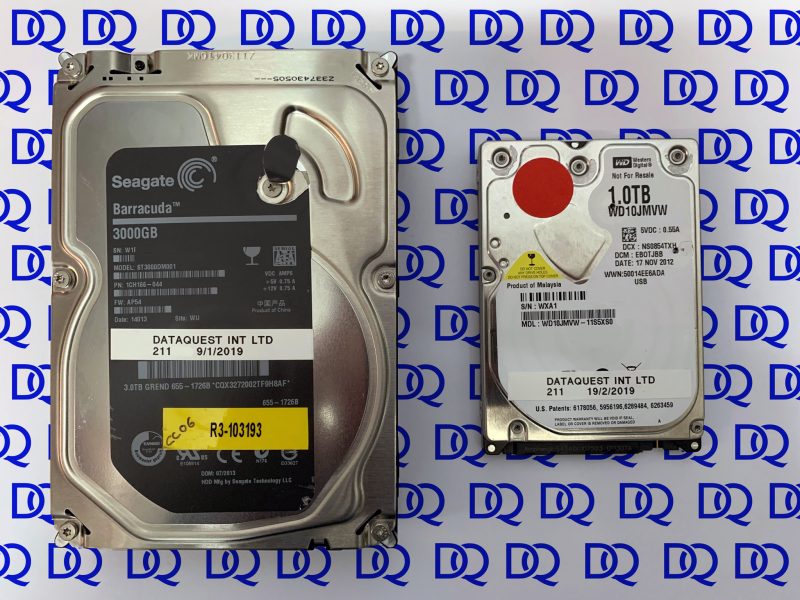
    Disk 1 – 3TB Seagate drive from an Apple Time Capsule.

    The disk had previously been sent to another lab for recovery. It was diagnosed as having multiple damaged heads, a stuck motor, cracked head-ramp, and microscopic damage to the disk surface.

    Our Findings

    We could see the screws and seals had been tampered with on the outside of the drive. When we took the drive into our cleanroom, we found sharpie pen markings on the various components. This usually indicates that parts had been removed or replaced. Of particular concern were the markings and screws around the spindle motor. With vertical and horizontal alignment, we never want to see a disk pack disturbed. We had no way to know if the disks had been rotated independently and had their alignment destroyed.

    Although we didn’t know about the disk pack, our only way forward was to install new heads and ramp, release the stuck motor, and see how the drive responded. On power-up, the drive failed to reach readiness and we were unable to access the diagnostic mode. One tiny sliver of hope was that when we rebuilt the donor heads back into their own drive they still worked fine. This at least told us there wasn’t significant disk damage.

    We installed a different set of heads, and this time were able to bring the disk ready using our diagnostic tools. We were able to extract a small amount of data before the heads stopped reading again. This time, we confirmed that disk damage had contaminated the new heads. This gets into awkward territory. The only way forward is to keep feeding new heads into the drive, resume the procedure, and keep extracting more data. In total we used three sets of fresh heads before we’d extracted all the files. We ended up with over 95% of the data recovered successfully.

    Disk 2 – 1TB Western Digital My Passport drive.

    This one was a bit different. The user had been given a good chance of recovery from another company, but been quoted over £1300 for the recovery. If you’ve been here before, you might know that we prefer to publish our prices online. You can see the costs before you even send a disk to us. The maximum price for a similar recovery with us was £488 but it was likely to be recovered for £329.

    By the time we received this disk it had been sent to a second other company. One with a bad track record that I won’t name. They quoted an impossibly low fee but after receiving the drive raised it until it was higher than ours!

    The more places that meddle with a disk, the lower chance we have of ever figuring out what the original fault was. In many cases we need to revert all the recovery attempts first, and then start from scratch.

    This disk again showed signs that it had been dismantled so we took it straight into the cleanroom to check the internal parts. There was no sign of damage, so we rebuilt the drive and proceeded with our usual diagnostic routine.

    We found a fault with the external electronic board on the drive so replaced it with a known good one. As with most modern disks, this also meant adapting the replacement board to work with our drive.

    The drive showed some instability during imaging, but it completed successfully and allowed full data access. Why the disk had been opened during the previous recovery attempts is a mystery. It served no purpose, and just introduced the chance of contamination and misalignment that was no help to the recovery.

    As expected, we ended up recovering the data for our lower fee.

    The Moral of the Story

    We always go the extra mile with a recovery. If you know anyone that’s had to give up on getting their data back, it’s worth sending them our way. We’ll never know how many more people have resigned themselves to never seeing their files again.

    Contact Us Now…

    For a fast reply from a real person.
  • Staying on Top of Technology

    Staying on Top of Technology

    An important part of data recovery is staying ahead of new technology. It’s important that we are able to recover data from wherever people currently store their files. People once stored their most valuable data on a hard drive in their PC. Making hard drives is complicated and expensive, so only a handful of manufacturers had the resources to build them. The relatively small number of brands allowed us to became experts in the way those disks work & fail. Over time, some of those manufacturers merged or went bust. There are now just a few factories building disks. That’s not to say hard drive technology is standing still, it’s just a small enough target to keep an eye on. When Seagate release a new family of disks we scrabble around for a little while, and then ultimately find out how they work.

    Enter the SSD

    Solid State Drives have been on the horizon for a long time now. In fact, the three Macs within arms reach of me right now all have SSDs in them. The biggest problem for me, is that the barrier to entry to make SSDs is really low. There are thousands of factories in China alone with the capability to pump out millions of SSDs. Just buy some controllers and NAND chips, solder them to a circuit board — Instant SSD.

    MacBook Pro SSD

    The Numbers

    In 2018 there are only three hard drive manufacturers left. By comparison there are 35 SSD manufacturers listed — without including all the white-label, rebadged, refurbished, grey-market & clone drives in the market. If we estimate that each manufacturer produces three different product lines, you’ll get to 105 different types of SSD vs nine hard drive families. In fairness, I can think off the top of my head that some of these hard drive brands have more than three families of disk, but you get the idea. Staying on top of all those brands quickly goes from difficult to impossible.

    The Future of Data Recovery

    You’ve got to wonder if the future of data recovery will be choosing even smaller niches. Some companies may focus on recovering just one or two brands of SSD, and know that they at least have a chance of staying up to date with the latest technology.

    Dead Ends

    SSDs present a number of new obstacles to data recovery. Some of these are not challenges as much as actual show-stopping dead ends.

    Does your SSD controller use encryption, wear levelling & compression? The answer is yes for most SSDs. What happens to the data if that controller fails? In some cases this means the data is gone for good. In other cases it could mean weeks or months of manual work. You can’t just solder on a replacement controller as it won’t have the necessary encryption keys, nor will it have any idea of where the data has been stored across the multiple NAND chips.


  • (Possible?) World’s First Apple SSD Recovery

    (Possible?) World’s First Apple SSD Recovery

    Apple’s PCIe SSDs have always proven challenging for data recovery. We have a good success rate with them, however many of our tools don’t even support working at PCI level. This particular SSD provided a new challenge though.

    The Device

    Manufacturer: Samsung
    Model:
    MZ-JPV5120/0A4
    Controller:
    S4LN058A01-8030
    Capacity:
    512GB
    Interface:
    PCIe
    Date:
    2015.11

    MacBook Pro SSD

    The Problem

    The SSD we received was initially showing up correctly in the system. Upon access, the disk would read a few bytes and then stop reading. The SSD would remain visible to the system but not respond to any further commands. The only way to bring it back was to cycle power. Yep, the IT classic — Turn it off and on again! The problem is, PCI cards don’t come with on-off switches so the solution needed to work within software.

    Brainstorming

    First I thought a copy task with a scheduled reboot may get the device back online, however I quickly found out PCI slots stay powered on during a reboot 🤦‍♀️ This means once the device gets stuck, a reboot won’t bring it back on.

    My second idea was to schedule shutdowns but the time taken to boot and then restart the copy process seemed like a nightmare.

    The Solution

    In the end I found a series of commands which could keep a fairly steady copy process going. The main idea was:

    • Start a copy task
    • Pause on error
    • Toggle the PCI connection using low-level commands
    • Resume the copy task
    • Rinse & repeat

    Although not the most elegant solution, this process cycled through 647 times, taking an average of 760MB per cycle. In less than 24 hours the whole 512GB device was cloned to another disk ready for recovery.

    After this script finished I did find a slightly cleaner way to reset the PCI slot which will result in much faster recoveries in the future.

    I was unable to find any mention of this type of recovery online, so if anyone else knows about it, they’re keeping it to themselves. If you know anyone with a failed Mac SSD, get in touch. This is just one of the many solutions we have for recovering them.

    Contact Us Now…

    For a fast reply from a real person.
  • Fake Seagate Samsung Hitachi Drive

    Over the past decade, hard drive companies have been endlessly bought-out and then re-sold. At this point I’ve pretty much lost track of who manufactures which brands now. Since all this restructuring, it’s quite common to see portable Seagate branded drives with Samsung disks inside & vice versa. There are also Maxtor branded versions of those same drives in some markets.

    Fake Seagate Samsung Hitachi HDD
    Seagate Samsung HDD. Seems legit.

    So what’s wrong with this disk?

    Here’s a list of some of the problems with this disk:

    • Unfinished labelling (the white edges are usually peeled off)
    • Mismatched serial numbers
    • Wrong PCB for a Seagate / Samsung disk
    • Wrong capacity
    • Misspelled Regulatory as Reaularory (see image below)
    European Reaularory Address
    European Reaularory Address

    I’ve never seen a disk quite like this. It’s from a Samsung external case with a Samsung logo on the front label. It also uses a Seagate model number ST1000LM024. Normal enough so far, however the label shows one serial number while the label opposite the SATA connector shows a different one. Also a third different serial number is reported electronically to the system when the disk is attached.

    Hitachi Edge Code Serial Number
    Hitachi Edge Code Serial Number

    The label at the end of the disk is actually a clue to the true identity of this disk. It features the familiar Hitachi / IBM style with two separate stickers & barcodes. The disk is actually a Hitachi HTS5432L9 which suggests a much older 320GB disk that was likely destined for the scrapheap in a former life. Funnily enough, these Hitachi disks had their own strange history of mislabelling.

    Fake?

    I originally thought this disk may have been a white-label or grey market disk. Some disks get refurbished and are then sold under different brand names in other markets. After a bit more investigation I think it may actually be more sinister than that. This is more like a fake or fraudulent disk, designed to dupe somebody into thinking it is a larger disk than it really is. It appears to the computer as 1TB however only contains 320GB of usable space. This is very similar to the fake flash drives we’ve seen before. The problem with fake capacity disks is that when you exceed the genuine size, the rest of the data usually becomes inaccessible. Also depending on how the disk handles the problem, it could damage the existing data when it fails.

    Recovery

    Fortunately for the owner of this disk, they had not yet used up 320GB of the disk. In fact this disk failed when the USB connector fell off. Maybe another sign of the poor build-quality of this fake. Once we figured out what we were working with we were able to recover all data. It took a combination of Hitachi firmware repair, careful imaging, and then exFAT reconstruction.

    Fake Seagate Samsung Hitachi

    Contact Us Now…

    For a fast reply from a real person.
  • Fusion Drive Data Recovery

    Fusion Drive Data Recovery

    Urgent Warning: Fusion Drive always consists of two separate disks. If you want your data back you must get both parts. We’ve heard a number of reports that users with failed Fusion Drives are only given the Hard Disk back when receiving Apple repairs. On its own, the hard drive is not enough to recover all data in original condition. This is especially true if FileVault encryption is used.

    HDD + SSD = Fusion Drive
    HDD + SSD = Fusion Drive.

    What is Fusion Drive?

    Fusion Drive is Apple’s version of a hybrid solid state & mechanical disk. It combines a small fast SSD with a large slow hard drive to achieve a balance between cost & performance. Frequently used files are moved to the SSD, and old stale data is sent to the slow hard drive. This is all taken care of automatically behind the scenes. Unless you dig into the terminal, you wouldn’t even know you had two separate disks inside the Mac. Fusion Drive is  part of Apple’s Core Storage system. It is somewhat similar to Linux LVM as a volume management system.

    What Fusion Drive is not

    Fusion Drive does not use the SSD as a cache for files but actually moves data from one disk to the other. This is important, as both disks are required for full recovery.

    Why does Fusion Drive exist?

    At launch, and even now, the cost for large capacity SSDs is way higher than the cost of an equivalent hard drive. The problem is that SSDs offer huge benefits to the user experience. When you use an SSD, you hardly ever have to wait for things to load. The computer boots up within seconds.

    Hybrid drives aim to bridge the gap between solid state and mechanical disks. An iMac with a 3TB Fusion Drive comes with some of the benefits of SSDs, but much less cost. As the cost of SSDs fall, the need for Fusion Drive will eventually disappear. Apple has shown with their current lineup that they’d much rather go all-SSD where possible. Current iMac Pro & MacBook Pro both use 100% SSD internal storage.

    Anecdote Corner

    We’ve had two recent cases where a user has brought a “Fusion Drive” to us for recovery, but actually only had the hard drive part. Apple had given the damaged hard drive back after replacement, but reused the SSD when creating a new Fusion Drive. This user only had a few GB of data so the Hard Drive hadn’t even been used yet. All the data was stored on the SSD which was now overwritten.

    The majority of Fusion Drives we’ve seen have a Seagate ST3000DM001 3TB hard drive combined with a 128GB blade SSD.

    If you need help with a Fusion Drive:

    Contact Us Now…

    For a fast reply from a real person.
  • OCZ Z-Drive 4500 PCIe SSD Recovery

    OCZ Z-Drive 4500 PCIe SSD Recovery

    I published a post back in 2016 highlighting the problem we were seeing with Sandforce controllers on single SSD drives. We have now also come across this PCIe 3.2TB SSD that uses a Marvel controller as well as Sandforce controllers to control banks of data chips. Like the others, this device has I/O errors which we believe is caused by the Sandforce controllers. This PCIe SSD device requires proprietary drivers for it to be recognised in the bios and OS, regardless of what platform it is run on. Although we can communicate with the device via an SSD Utility provided by Toshiba, there is no access to the user data.

    OCZ Z-Drive 4500 PCIe SSD
    OCZ Z-Drive 4500 PCIe SSD

    If you’ve got a problem with an OCZ SSD:

    Contact Us Now…

    For a fast reply from a real person.
  • OS X Base System Data Lost

    We’ve seen a few cases recently where a user has unexpected lost all data, and been left with a disk named OS X Base System. Inside the disk is a file named Install macOS Sierra or Install macOS High Sierra, and a few other system files.

    The OS X Base System is usually part of a macOS installer or update, so it’s unclear how disks ended up getting replaced with this.

    If this has happened to you, we’d love to hear more about how.

    We can usually recover these disks, but it’s really important that you stop using the disk as soon as possible. If you install anything to the disk you could risk losing all the data permanently.

    We’ve still got more of these to investigate so we’ll update the post when we’ve learned more.

    Update: Could be related to Internet Recovery?

  • MacBook Escape Data Recovery

    The MacBook Pro (Late 2016) comes with 50% more escape key than you’ll ever need. It also comes with a strange SSD so we had to get creative to recover them.

    In short, we can recover them! More info at the link below.

    MacBook Pro (Late 2016) Data Recovery