Back in the bad old days (mid 2000s), before SSDs and 8TB hard drives, PC builders faced a difficult decision. Everyone wanted more storage space, but large disks were expensive. Fortunately for the manufacturers, most PCs could invisibly combine two smaller & cheaper disks into a larger one, using RAID 0 (Redundant Array of Independent Disks). The technology had previously been confined to data centres where servers used RAIDs for various performance & security benefits. Unfortunately for most customers, they had no idea this was happening in their PC until things stopped working. Either the customer, or a technician would open the PC to find two smaller disks where they expected to see a single larger one.
If you were lucky, the tech would call in a specialist 👋 and your data would be recovered safely. If you were less lucky, there are lots of ways to wreck this setup.
The best way to trash a RAID 0 is by not realising that’s what you’re looking at in the first place. It’s easy to mistake the disks as two independent disks. We’ve seen far too many cases where one of the disks was erased or reinstalled with Windows as an attempt to resurrect the PC. At best, this will make the recovery difficult. At worst, it can make recovery impossible.
Without trying to sound like a broken record, this is another example of my catchphrase – Most damage to data happens AFTER the original failure.
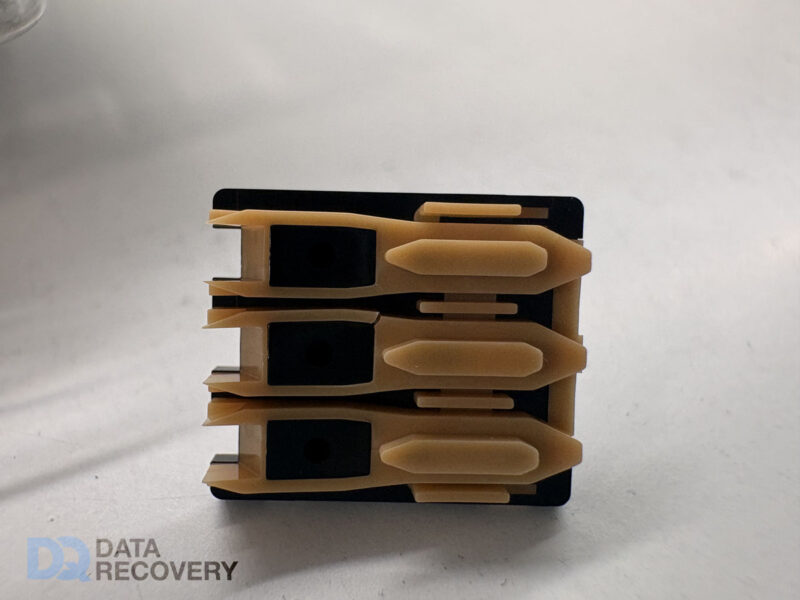
During a recent RAID 5 recovery attempt, John made an interesting discovery inside the two failed disks. The plastic ramp that the heads park onto when idle had snapped in the same position on both drives. We don’t know if the heads got damaged first, and then broke the ramps during parking, or if the ramps broke first, damaging the heads as they parked. The client told us the disks were not dropped or jolted. Whatever the cause, both disks had scratches to the delicate magnetic surfaces. In this case, two failed disks from a four disk RAID 5 means the data recovery is not possible.
Old vs New
The other two disks in the RAID had different firmware and don’t show the same fault. We don’t know if these disks have the other (older?) more robust ramp system that we’ve seen in similar disks.
Seagate Barracuda Head Ramps (left is damaged)
More Problems With Seagate Drives
These ramp problems are the latest in a longline of faults for Seagate.
Disk Info
Failed Disk
Failed Disk 2025
Working Disk
Model Number
ST3000DM001
ST3000DM001
ST3000DM001
PN
1CH166-306
ICH166-048
1CH166-302
FW
CC29
AP19
CC26
Date
14354
15304
13407
Site Code
TK
TK
TK
Interestingly, the surviving disks in this RAID array were dated 2013, and the failed disks 2014. I would have expected the older disks to fail first.
We just received another of these disks from an iMac with the dreaded snapped parking ramp. This was part of a Fusion Drive. Despite the relatively minor looking crack, it caused severe enough physical damage to the discs to prevent recovery. Interesting that the crack matches the same position as the original 2016 photo above.
I was recently going through some old posts on here, and found the one with the clickbaity headline When Backups Go Bad. Despite the title, I thought it was worth looking again at some of the common ways backups can go wrong. A bad backup can be as useless as no backup at all. There is an old phrase that applies perfectly to backups. “One is None. Two is One.”
RAID Instead of Backups
Using RAID instead of backups. Most RAID failures are not simple single disk failures so RAID won’t help. #WhenBackupsGoBad
This is a common one. Although RAID can protect against some hardware failures, it does nothing to protect against corrupt partitions, virus attacks, accidental deletion, formatting, multiple disk failures. The list is endless. Add to this the fact that you can have 12, 24, even 48TB stored in one massive array, and you stand to lose an awful lot of data in one go if the whole thing goes south.
Same Disk, Different Day
Making backups to another partition on the same disk. Disk fails, both copies gone! #WhenBackupsGoBad
There are ways to partition a disk so it appears to the computer as multiple disks. The danger is, if you don’t know there are two physical disks inside the computer, you could be making backups to the same disk. When it fails, both partitions will go with it. Best backup to an external drive and then you know for sure.
Break the Encryption
Making an encrypted backup, but forgetting the password.#WhenBackupsGoBad
Encrypting any data is risky without careful consideration. By design, your encrypted data is not accessible without the password, or perhaps a recovery key that was created during the original setup. If you don’t have either of those keys, you can wave goodbye to the data.
Inbetweener
Restoring computer after making a "backup" to external disk. During the restore, you’ve only got 1 copy! #WhenBackupsGoBad
If you’re ever left with a single copy of your files, you’re on thin ice. If something goes wrong, you’ve lost one copy of the data already. We always suggest multiple backups for this reason.
The Space Maker
Making space on laptop by *moving* data to “backup” drive. It’s not a backup if it’s the only copy! #WhenBackupsGoBad
New computers can have painfully small storage, (hey Apple) so a common solution is to start dumping files off to an external disk. This is fine if you just move over replaceable movies & music, but you have to be prepared to never see those files again. Don’t store all your photos & documents on an external drive unless you keep another copy somewhere. External disks are no more reliable than internal ones and can fail at any time. If anything, the risk of dropping or losing an external drive is higher as they are so small and portable.
I’m sure there are more ways backups go bad. I could probably make this into a regular feature. Remember, when it comes to backups One is None, Two is One…
This was a RAID recovery with a challenge. The customer could only find seven of the eight disks from the RAID and two of them were not accessible. To make the challenge even more difficult, the customer did not the RAID level or any of the configuration. All we knew was the disks were from an old Dell Server.
The RAID Recovery
We first managed to overcome the failed disks and imaged all disks to our server. Once complete we analysed all of the images to determine the RAID settings and configuration. We found two different RAID’s with completely separate configurations. We used the settings to create virtual copies of the RAIDs and were able to carry out a successful recovery from both RAID Volumes.
The client was gobsmacked by the outcome. You can see his comment below:
DataQuest are amazing, we sent 7 HDD’s in a unknown raid configuration and with a failed hard drive, they managed to recover all the information we needed and more! I believed it was an impossible task, but obviously these guys know their stuff and are miracle workers! I thank the team at DataQuest and would recommend them to anyone! –Matt Bayley – February 29, 2016
We had a very satisfied customer as well as very satisfied RAID recovery Engineer. Well Done Dan, give yourself a pat on the back.
This OWC external enclosure is a common sight on the desks of Mac users with big storage needs. It’s a pretty standard 4-bay box, styled somewhat like a cousin of a PowerMac G5 or 1st generation Mac Pro. Inside are the usual options of RAID 0 to RAID 5 with a few additions like JBOD & RAID 10 thrown in for good measure. There are a few variations of this device but the back panels commonly have USB, Firewire, and eSATA ports for direct connection to a PC or Mac. There is no ethernet port on these drives which makes the Qx2 a DAS (Direct Attached Storage) rather than NAS (Network Attached Storage).
Aside from massive name, the OWC Mercury Elite Pro Qx2 also comes with a potentially huge amount of storage. Currently up to 32TB on the OWC store, but also available diskless or BYOD (Bring your own disks). With so much storage space, these drives often become the one and only repository for vast lumps of important data. The benefits of RAID give a false sense of security that the data is safe from drive failures. Unfortunately, there are a number of reasons why the RAID array alone will not protect from certain failures. Most of these failures can be overcome by us in our workshop, but they are not one-button fixes. It is helpful to understand why a seemingly rock-solid platform can be even more risky than a simple external USB drive.
Redundancy
Under common settings, the Qx2 will use RAID 5 for the array. With four 2TB drives this gives you a 6TB volume on a Mac or ~5.5TB on a PC[1], and can cope with a single disk failure. There is a lot of debate about how good RAID 5 really is for such large drives[2]. In our example this means that if a single disk fails, it will need to be replaced, and then the new disk rebuilt with 2TB of data calculated from the other disks. This will take many hours, even under optimal conditions, but if anything goes wrong before it completes the array could stop showing up all together. At this stage, the data is probably recoverable but don’t panic. One wrong move and the data could be gone for good.
If the data is crucial then get assistance from a RAID recovery service now and you should get back all or most of the data.
If any disks are removed or replaced at this point the array could get reinitialised and either make the recovery more complicated or wipe the data completely.
Other Failures
Aside from all the problems with a RAID setup, the volume could also fail in the same ways that a standard hard drive can. There could be deleted files, a reformatted or corrupt partition, or even the RAID controller failure. RAID cannot protect against those types of failure at all.
Recovery
Our first step would be making read-only copies of each disk in the array. This protects against further disks failing, and also allows us to work from copies without risking the original disks. In fact, once the disks are copied, we put the originals to one side and don’t touch them again until all the data is recovered and supplied back to the user.
Once we have our copies, they are loaded into our own hardware where we recreate the RAID in a virtual environment. Again, we don’t use the original hardware, as that may have been the root cause of the problem.
When the virtual RAID has been loaded and all the data extracted, the files are supplied back on whatever alternative storage is suitable, (not the original device!) Once the data has been delivered to the user, and backups made, the old unit can then be destroyed, or returned and reused.
Avoidance
Anyone using RAID on a regular basis should know that RAID is not a replacement for backups. If anything, the increased number of disks makes failure more likely. This needs to be addressed by either making backups to another device, or an online service (preferably both). You ideally want backups that keep historic versions of the files, so that inadvertently deleting a file or changing a file by mistake will not also replace the backup version.
If you are having problems with an OWC Mercury Elite Pro Qx2, give us a call or send a message via the form on this page. We give free advice and could help you avoid permanent data loss.
1. Macs now use 1000 bytes for 1KB but PCs use 1024 bytes.
2. Even RAID 6 does not solve the long time required to rebuild a disk, even though it allows for two disk failures.
We’ve been hearing reports of data loss with certain external hard drives after an upgrade to the latest Mac operating system Mavericks. The blame seems to fall to the disk management software that Western Digital bundle with their external hard drives. In response WD has removed WD Drive Manager, WD Raid Manager, and WD SmartWare from their website until they figure out the problem.
We have already had first-hand data recovery enquiries for such disks, so it remains to be seen if these issues can be resolved, or if the data is permanently damaged. One notable case involved a 6TB RAID with two 3TB drives in a mirrored array. After the update to Mavericks, the volume appeared as an empty 3TB drive.
It’s worth noting that even if you use a Western Digital RAID drive set as a mirror, this problem can still cause data loss. Both disks in the mirror are susceptible to the same problem. Remember that RAIDs need to be backed up even more than single disks!
We’ve now completed the recovery process for one of these hard drives. It appears that the drive we received had been formatted to an empty MyBook volume. The way the Mac filesystem stores data means although most of the files can be recovered, it is not possible to restore the original file and folder structure. This causes issues for files like InDesign which link to external files by name when you add graphics to the document.
We’ve not yet seen enough of these disks to know if this is a common outcome for all affected disks.
We often hear from people that have lost their data, despite having some sort of backup. It’s important to remember that your backup is no-longer a backup if it becomes the only copy of your data. We usually suggest having at least two forms of backup to cover this problem.
An example of a failed backup strategy came recently. A user had one server, and at the end of every day would duplicate the whole server to another server. This is OK for some scenarios and gives you a day-old server ready to bring out if your main server fails. We would have also suggested a second backup routine to run at the same time to some other storage. Preferably an external drive, accessible from a standard computer.
The system worked fine for over a year, until server 1 failed one day. Instead of replacing the disks and then restoring from the backup, it was decided to reuse the original disks and then load them from the backup. They overwrote server 1 with the backup from server 2.
When the restore was complete, it was discovered that the data on server 2 was actually corrupt. This corrupt data had also been written back to server 1. The client ended up with two corrupt servers, and no good copies of the data. Worst case scenario.
You will often hear that deleted data isn’t really deleted. This is kind of true, but only until you overwrite the data with something else. By writing server 2’s data over server 1, that effectively overwrote the original data, and left no possible avenues of recovery.
RAID Mirrors
RAID Data Recovery
Another common problem we see is with external RAID cases like the Netgear ReadyNAS. These can be setup in a mirror mode which keeps the same data on both disks. Theoretically when one disk fails, the other can still be accessed. In reality the failed NAS will often end up in an unusable state where access to the data is not possible anyway. Even if you plug the hard drive directly into a PC, the NAS drives use a non-standard format so the data is not accessible.
Avoidance
The best way to avoid getting caught out by your backups is to never trust them. Be more paranoid. If you think you have a solid backup system then add another backup, just in case. Then next year add another. Most of the time it will seem irrelevant, but when your server and backup drives all get struck by lightning or end up flooded under six feet of water, you’ll be glad you spent the extra few pounds on an extra backup.
Extra Credit.
If you’re already using a Time Machine backup on your Mac then why not supplement that with a monthly whole-disk copy to a different drive. Carbon Copy Cloner or SuperDuper! can take care of it. This also has the advantage of being instantly bootable in an emergency and can even be stored in a locked safe, or at a friends’s house.
A NAS (Network Attached Storage) puts storage onto your network, where it can be accessed by many computers. They often have more than one hard drive which can allow you to have automated copies of your data, which is known as RAID. A common type of RAID found on NAS devices is RAID 1, which will make two hard drives into a mirror copy of one another. Some manufacturers call RAID 1 Safe mode. If you have a NAS with two 1TB hard drives and set them to RAID 1 mirroring, instead of 2TB of storage (1TB x2) you only get 1TB. Everything you store to the NAS gets saved to both drives automatically. The theory is that if one of the drives fail, you can access all of the data from the other one. In practice that is not always the case. More on that later.
RAID 1 Mirror Animation
RAID 0 (Stripe)
Another common NAS option is RAID 0. The “R” in RAID stands for redundant, however there is no redundancy in RAID 0, so it’s not a real RAID type. If you setup the same two 1TB disks as RAID 0, you will get a 2TB volume to store your data on. The problem is that every single file you write to the NAS will be split into tiny pieces and distributed across both drives. If one drive fails, you not only lose the data from that failed drive, but also from the non-failed drive as it only contains half the pieces of each file. RAID 0 should never be used for long term storage, but can be fast so is often used for video editing.
RAID 0 Stripe
So that’s the hardware taken care of. What other things should you look out for when choosing a NAS?
Another problem with most NAS devices is the non-standard filesystems they use to store the data on the disks. If the NAS itself fails, you cannot usually read the disks by attaching them to a standard PC. So even in RAID 1 mirror mode, you could end up with no usable copies of your data. Most NAS drives run a simplified version of Linux, but only some of them use standard Linux filesystems like ext2/3/4.
Backup my backup?
Some NAS drives have a USB port to allow you to backup the data to an external hard drive. This is great, as long as you can access the backup data on a regular PC, and it doesn’t need to go through the NAS. You can imagine why that would be a problem.
To summarise, NAS drives can be a great way to upgrade your home or small office storage. They can allow collaboration and sharing of files between users, and should simplify your backup process. Just remember that a NAS is a small server that needs to be backed up as a matter of urgency. As long as you have that covered then a NAS can be a smart addition to your network.
As somebody recovering data from RAID arrays, my view on them is a little different to the norm. In most cases I would say avoid RAID wherever possible. Simplicity is key.
Below are my answers to some real questions I have received from clients about RAIDs.
Why did this RAID disk fail?
Hard drive failure is not unusual and is often not avoidable. The truth is that all hard drives fail eventually, whether they are used in a RAID or not. Even though a RAID system can provide some fault tolerance from physical drive failure, they do have limits. A RAID5 on three disks for example can only handle a single drive failure at any one time. It is common for a second disk to fail whilst the other disk is being replaced. This is when RAID recovery is required; to first access the failed drives, and then rebuild the RAID. The best protection against RAID failure is to make backups. Backups in as many formats, in as many different physical locations as possible.
Why did the server fail so badly? Isn’t RAID meant to prevent this?
A 3-disk RAID5 can only cope with one bad disk. This doesn’t help when two drives fail at the same time. Although a RAID array can provide some leeway when it comes to disk failures, it doesn’t always help when you have multiple failures in quick succession. Adding more disks to the RAID can provide more redundancy, however this costs more money, and also adds complexity when things go wrong. Also you could be in a similar position if three disks happen to fail next time. A live system could fail at any time so prepare for the worst. Backups are cheap, and take a relatively short amount of time. RAID recovery can be expensive and cause unnecessary downtime.
Why couldn’t our IT support recover this?
We are a specialist data recovery company, with access to tools and resources which are not available to IT Support staff. We have spent the last fifteen years perfecting the process of extracting data from failed & failing hard drives and RAID arrays. For the best chance of recovery, we like to get the drives as soon after failure as possible. If more work gets carried out on the drives, things can be made much worse.
How can we avoid this happening again in the future?
To avoid similar problems in the future, the best way forward is some form of regular backup. The backups should be verified and then tested / restored as often as possible. This is where disaster recovery comes in, which can involve simulating certain types of failure and making sure you can get up and running again from your backups. At the very least, it wouldn’t hurt to put the really crucial business files onto an external hard drive every few weeks and store it in your company safe. It’s low-tech but at least you could plug it in to any PC and access the important business data if required as a last resort.
I’m not against RAIDs. They do have their place, but cannot be relied upon as a replacement for regular backups.
RAID is often touted as the silver bullet in data storage. Increased storage capacity, resistance from hardware failures and improved performance. While these are all valid upsides to a RAID setup, there are also a few downsides which need to be addressed.
1. Extra Storage.
RAID can allow for a huge pool of storage, but with that storage comes great responsibility. You should factor in at least enough capacity to backup the RAID data somewhere else. If you can only afford 8TB of storage then you should only use 4TB for data and the other 4TB to back it up; Preferably on another machine / standalone system.
2. Redundancy.
The first letter in RAID stands for redundancy. This means you can afford to lose a certain number of disks without losing access to your data. This also means that if you have a disk failure you need to get it replaced immediately, otherwise you’re running without redundancy.
3. Downtime.
Nobody likes downtime. If your 16TB RAID array goes offline without a backup then you have a couple of options. One option is to attempt to get the RAID back online by replacing disks, rebuilding the array etc, but this is risky. If this is your only copy of the data then rebuilding / reformatting the RAID could corrupt the data beyond recovery. Don’t do this if you don’t have a backup to fall back on.
The second and preferable option is to get the RAID professionally recovered. When we receive a RAID, the first thing we do is make images of all disks. This allows us to work on the RAID without risk. Then we use a read-only process to extract the data onto another form of storage. This is where downtime comes in. Unless you go for an emergency process, you could have to make do without the data for a number of days.
So What’s The Way Forward?
It’s one word. Redundancy.
Whatever you do, make sure your data is replicated across as many types of storage as possible. In an ideal world you would have a duplicate system running alongside the live system, which can take over if anything goes wrong. Then have the data on another type of storage, which you can access from somewhere else. Imagine if the RAID controller failed, and you could only access the data from that one machine.
It doesn’t matter how many backups you have if they all require the same system to access them.
I’ve only just scratched the surface here, but you should always look to make extra copies of your data. It may seem redundant now, but when your server fails containing all your data, all your accounts, all your client details and your website, you’ll be glad you kept that extra copy.